How to use the Glossary
The Glossary gives you control over how specific terms are translated. Use it to keep brand names exactly as they are, or to force a particular word to always translate the same way in each language.
Two rule types
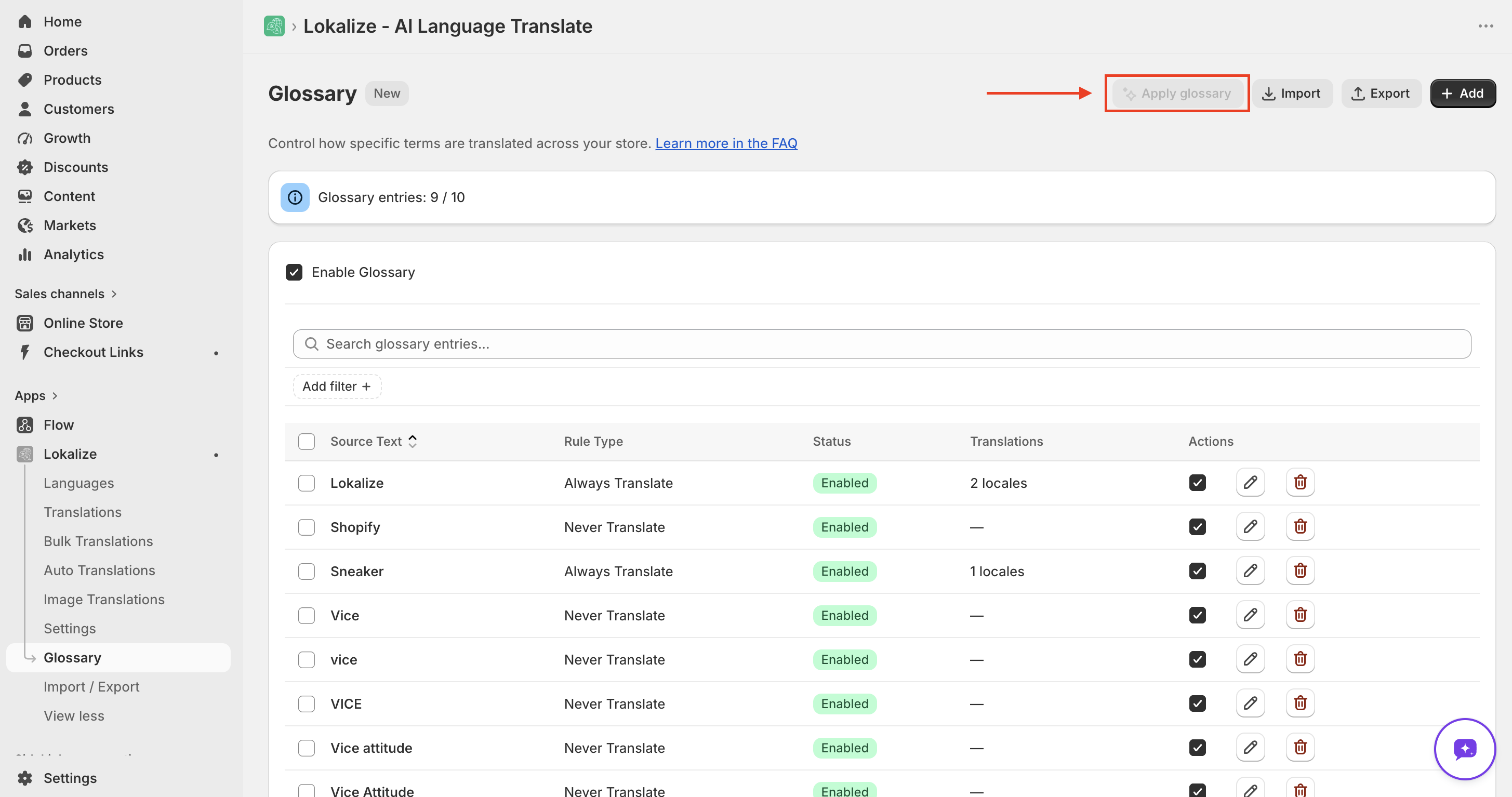
- Never Translate — keeps a term as-is in every language. Ideal for brand names (like "Shopify"), technical terms, and acronyms.
- Always Translate — lets you set a specific translation for each target language. For example, "Sneaker" can always become "Zapatilla" in Spanish.
Create and enable the Glossary
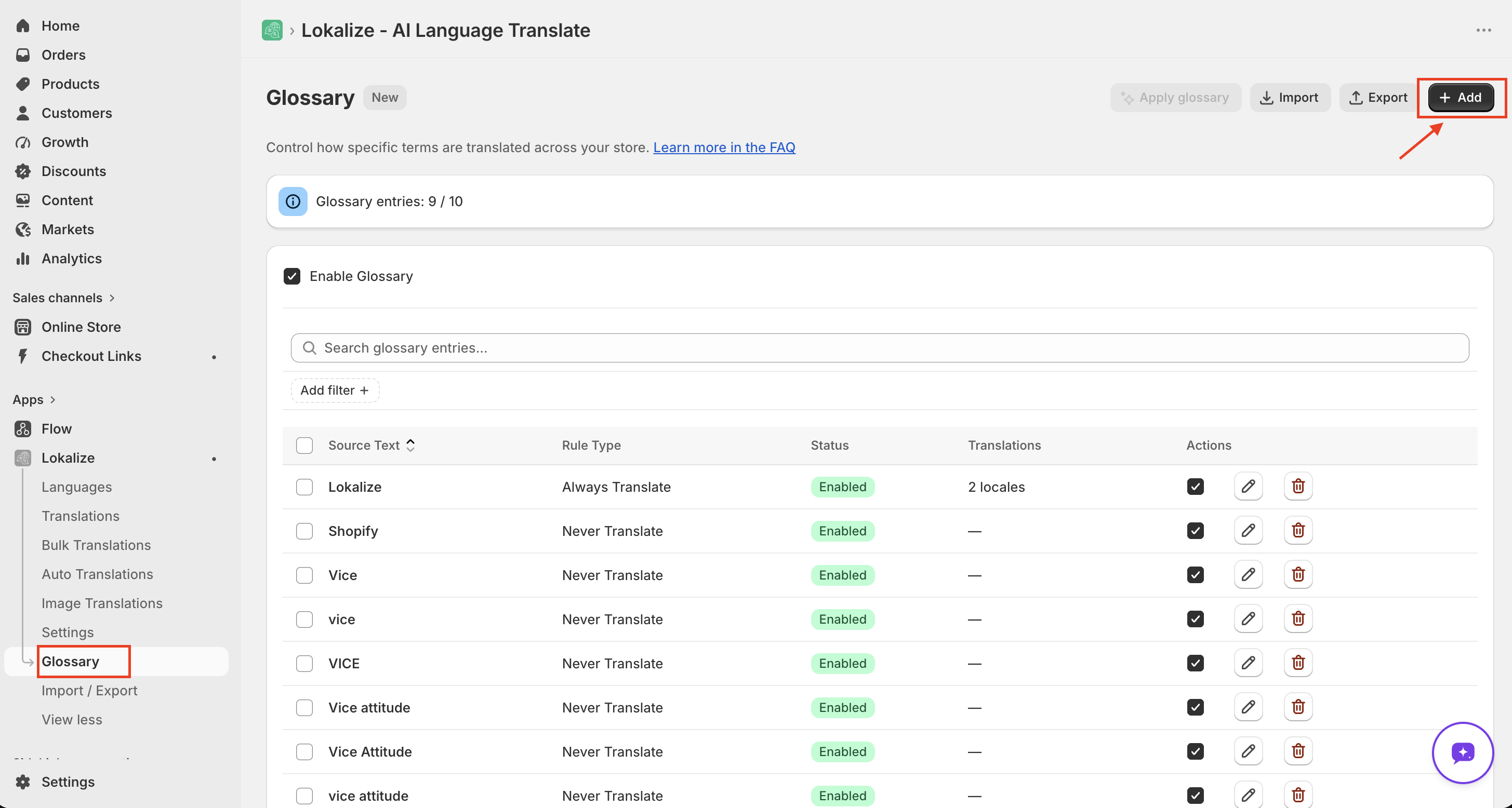
- Open Lokalize → Glossary and click Add.
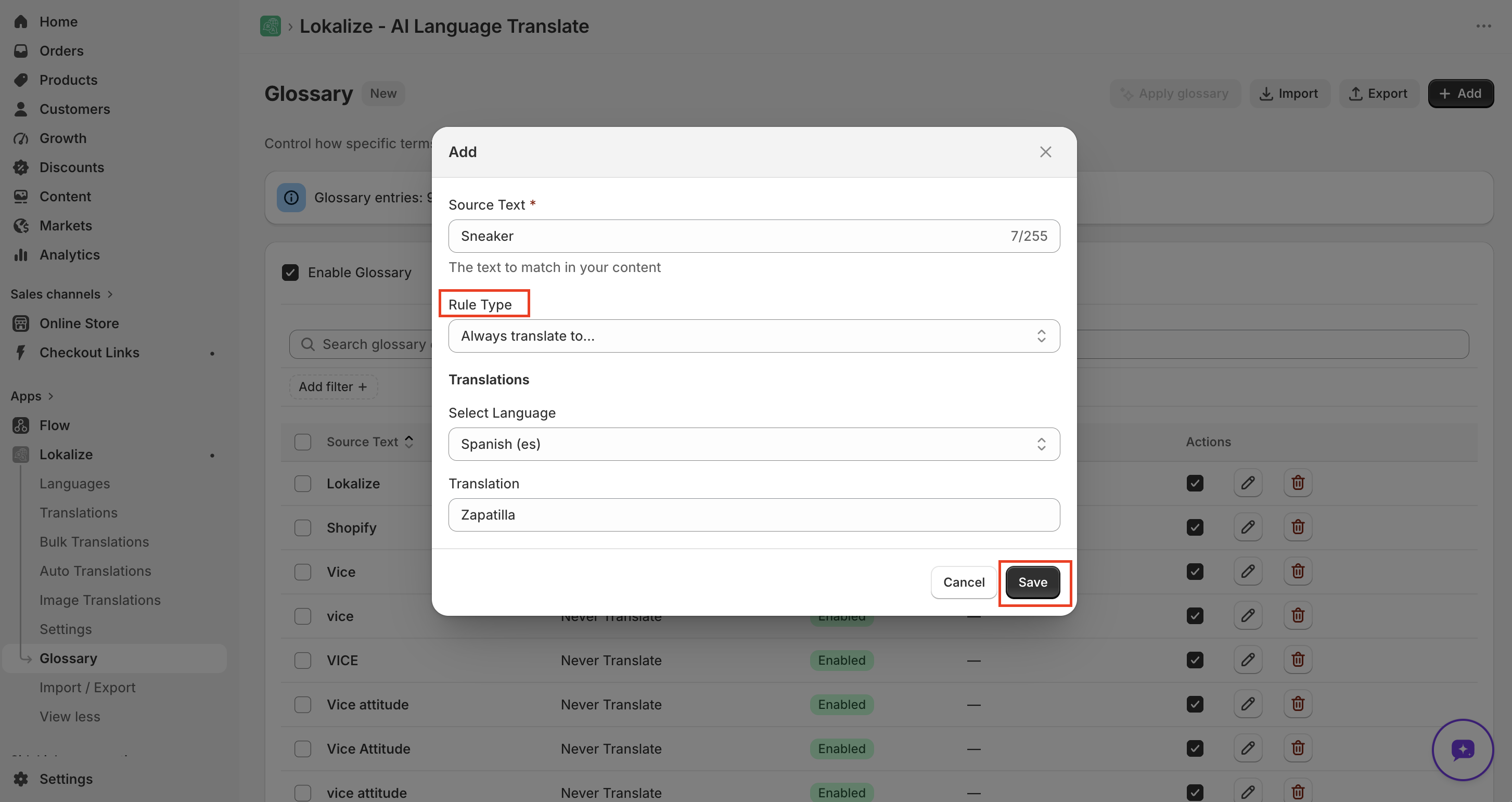
- Fill in the entry:
- Choose the Rule Type (Never Translate or Always Translate).
- Enter the Source Text — the term as it appears in your store.
- For Always Translate entries, add your per-language translations.
- Click Save.
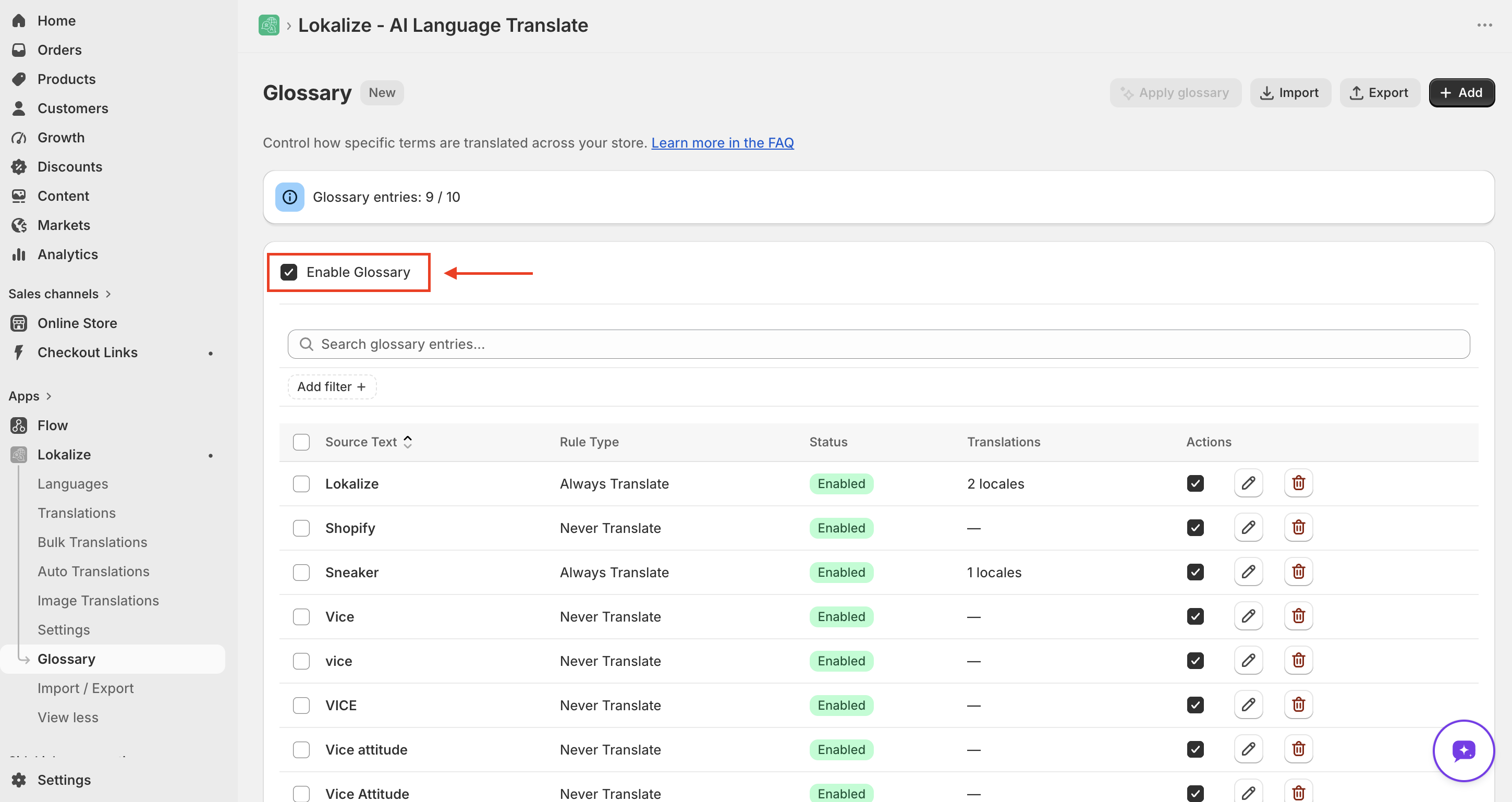
- Toggle Enable Glossary at the top of the page so that rules are applied during translation.
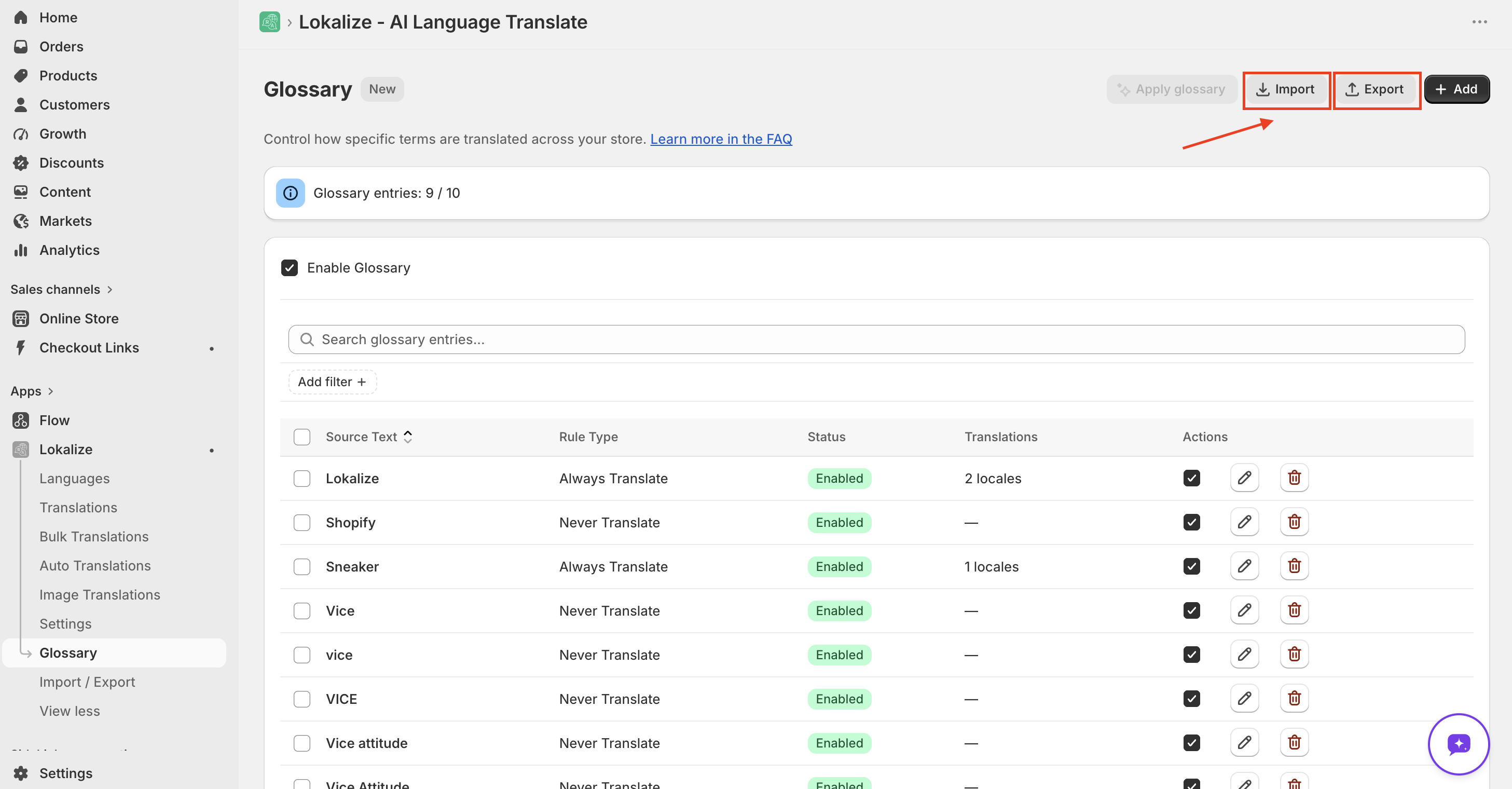
You can also import and export your glossary for faster editing.
Good to know
- Matching is case-sensitive. If you add
snowboard, it matches onlysnowboard— notSnowboardorSNOWBOARD. Match the casing your store content actually uses. - Rules apply to new translations only. Enabling the Glossary doesn't change content you've already translated. To apply rules to existing content, use Apply glossary to existing translations (below).
- Works with every engine. Glossary rules are applied no matter which translation engine you use.
Apply the glossary to existing translations
This re-translates only the fields whose source text contains at least one of your enabled glossary terms, for the languages and resource types you pick. It does not re-translate your whole store.
For example, if a product's title is "Acme Snowboard" but its description mentions no glossary term, only the title is re-translated — the description is left exactly as it is. For any matched field, it overwrites an existing translation, refreshes an outdated one, or creates one if none existed.
Resources that don't match any glossary rule are skipped entirely. Deselect resource types you don't want included to prioritize high-value content when credits are limited.
Apply glossary to existing translations is available on Pro and higher.
Frequently asked questions
Is the Glossary case-sensitive?
Yes. Matching is case-sensitive by default. If you add snowboard as an entry, it matches only snowboard — not Snowboard or SNOWBOARD. Make sure your glossary entry matches the casing your store content actually uses.
Does the Glossary work with all translation engines?
Yes. Glossary rules are applied regardless of which translation engine you use — Default, ChatGPT, or any BYOK engine.
What happens to my glossary entries if I downgrade?
If your new plan allows fewer glossary entries than you currently have, the most recently created entries are automatically removed and the oldest are kept. Existing translations in Shopify are never deleted.