How to translate and replace images
Image Translation lets you show different images and alt text for different languages. You can swap images per locale so customers see localized visuals — a banner with translated text, a region-specific model, or a size chart in the right units.
The Image Translations page has three tabs:
- Products — swap images and alt text for individual products.
- Collections — swap images and alt text for individual collections.
- Media & banners — swap store-wide images such as homepage banners and other files from your Shopify media library.
Does your image have text in it, like a sale banner or size chart? On Premium and above, AI can translate that text for you. See How to translate text in images with AI.
Swap an image or translate alt text
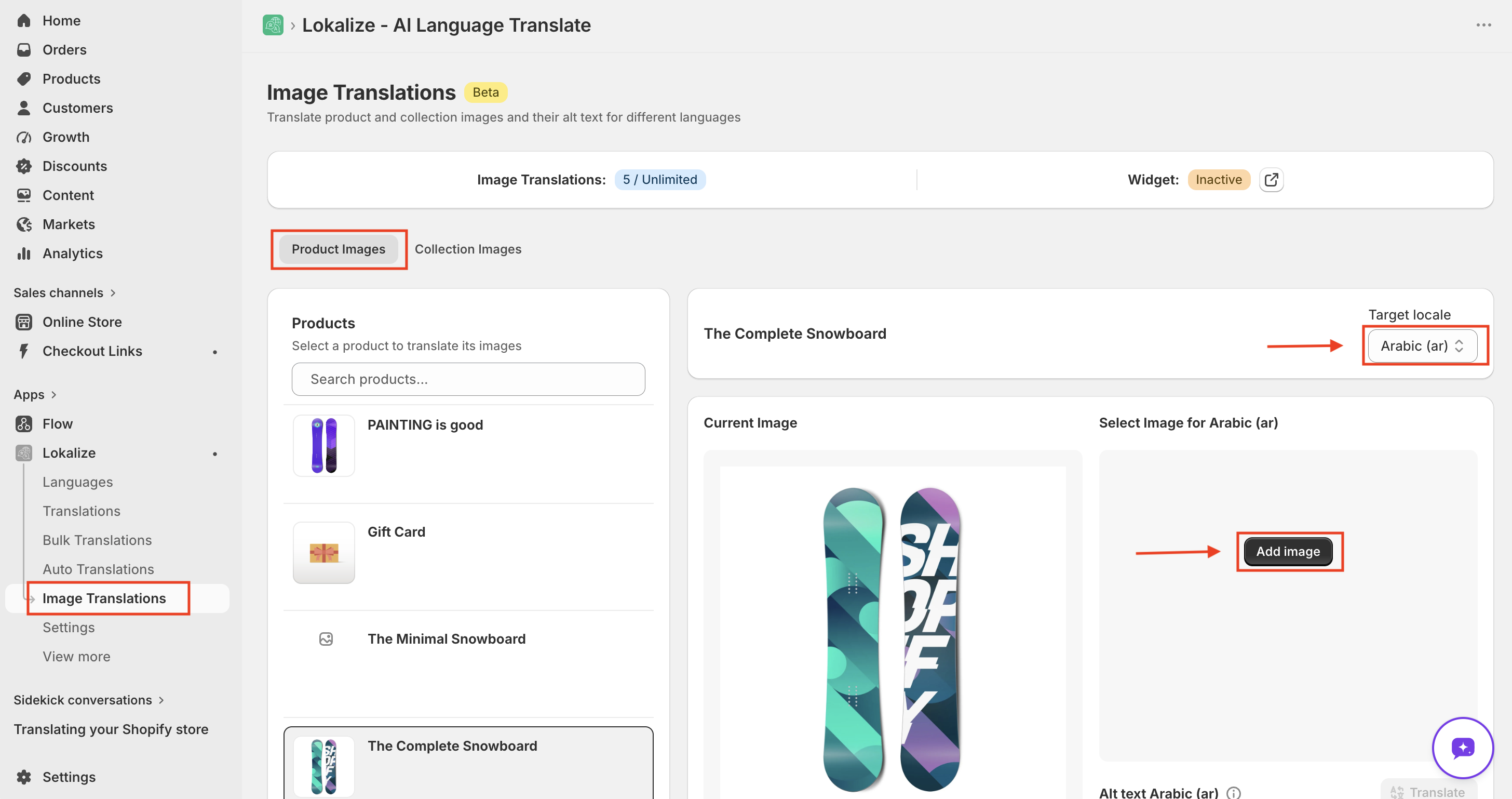
- Open Lokalize → Image Translations.
- Select the tab for the content you want to localize (Products, Collections, or Media & banners).
- Pick an item from the sidebar.
- Select a language from the dropdown.
- Click Add Image, either:
- Pick an existing image from your media library, or
- Upload a new one (JPG, PNG, GIF, WebP, or SVG, up to 20 MB).
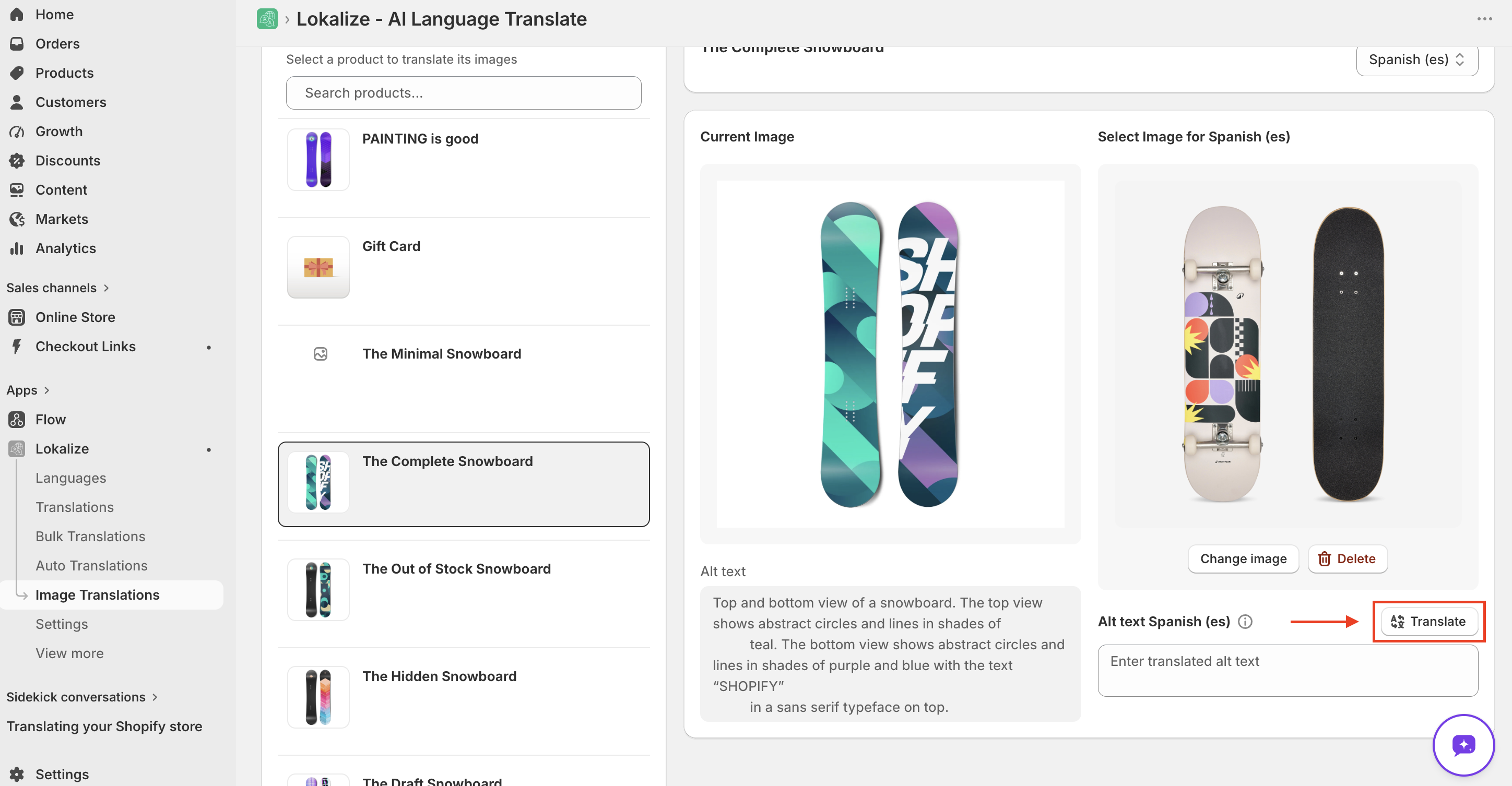
- To translate alt text, click the Translate button next to the alt-text field, or type your own.
- Save.
Remove a translated image
- Select the item and the language you want to change.
- Click Delete under the translated image.
- Click Save in the save bar.
Your storefront goes back to showing the original image for that language. The file stays in your Shopify Files in case you use it elsewhere.
:::note Screenshot pending A translated image with the Delete button highlighted. :::
Show translated images on your storefront
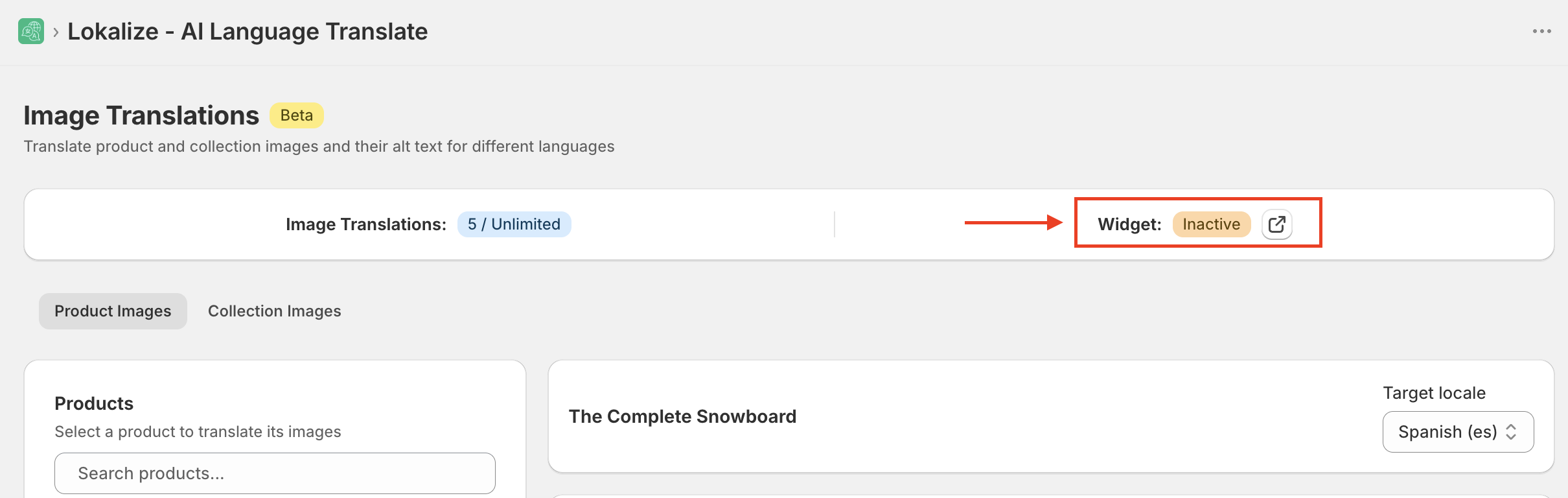
For translated images to appear on your storefront, you need to enable the Image and Custom Translation Widget in your theme.
- In Lokalize, open the Image Translations page.
- Next to the widget status badge, click the external link icon — this opens your theme editor directly on the Image Translations block.
- Toggle the block on in the left panel.
- Click Save in the theme editor.
Once saved, return to the Image Translations page — the widget status should show Active.
Credits and limits
- Swapping images is free — it doesn't use any word credits.
- Translating alt text uses credits, because it's text translated by AI.
- Each plan includes a lifetime image-translation allowance (it does not reset monthly). Basic 20, Pro 100, Premium and Business unlimited.
- Updating an already-translated image is free and doesn't count toward your limit — only new translations are counted.
- When you upgrade, your limit increases to the new plan's allowance and your existing usage carries over.
- AI image translations are counted separately, with a monthly allowance on Premium and above. See How to translate text in images with AI.
Frequently asked questions
How do translated images appear on my storefront?
You need to add the Image Translator block to your theme via the theme editor (App Embeds). Once enabled, it automatically swaps images based on the customer's active language.
How does the image translation limit work?
Each plan includes a lifetime image-translation allowance — Basic 20, Pro 100, Premium and Business unlimited. Updating an already-translated image is free and does not count toward your limit. When you upgrade, your limit increases and your existing usage carries over.
What image formats and sizes are supported?
You can upload JPG, PNG, GIF, WebP, and SVG files up to 20 MB each.