How to translate images with AI
Some images have text baked into them — a "Summer Sale" banner, a size chart, a product label. Swapping alt text doesn't help there, because the words are part of the picture. AI image translation recreates the image with its text translated into the language you choose, keeping the layout, colors, and product as they were.
You always see the result next to the original before anything is published, and nothing reaches your storefront until you save.
AI image translation is available on Premium and above:
| Plan | AI image translations |
|---|---|
| Basic | — |
| Pro | — |
| Premium | 50 per month |
| Business | 100 per month |
Your allowance resets on the 1st of each month (UTC). It's separate from your manual image translations, which stay as they are.
Step 1: Make sure the language is AI-enabled
AI image translation only works for languages that have AI Enabled turned on.
- In Lokalize, open the Languages page from the left sidebar.
- Find the language you want to translate images into.
- Turn on AI Enabled for that language.
If the language already shows AI Enabled, skip this step.
Step 2: Choose the image you want to translate
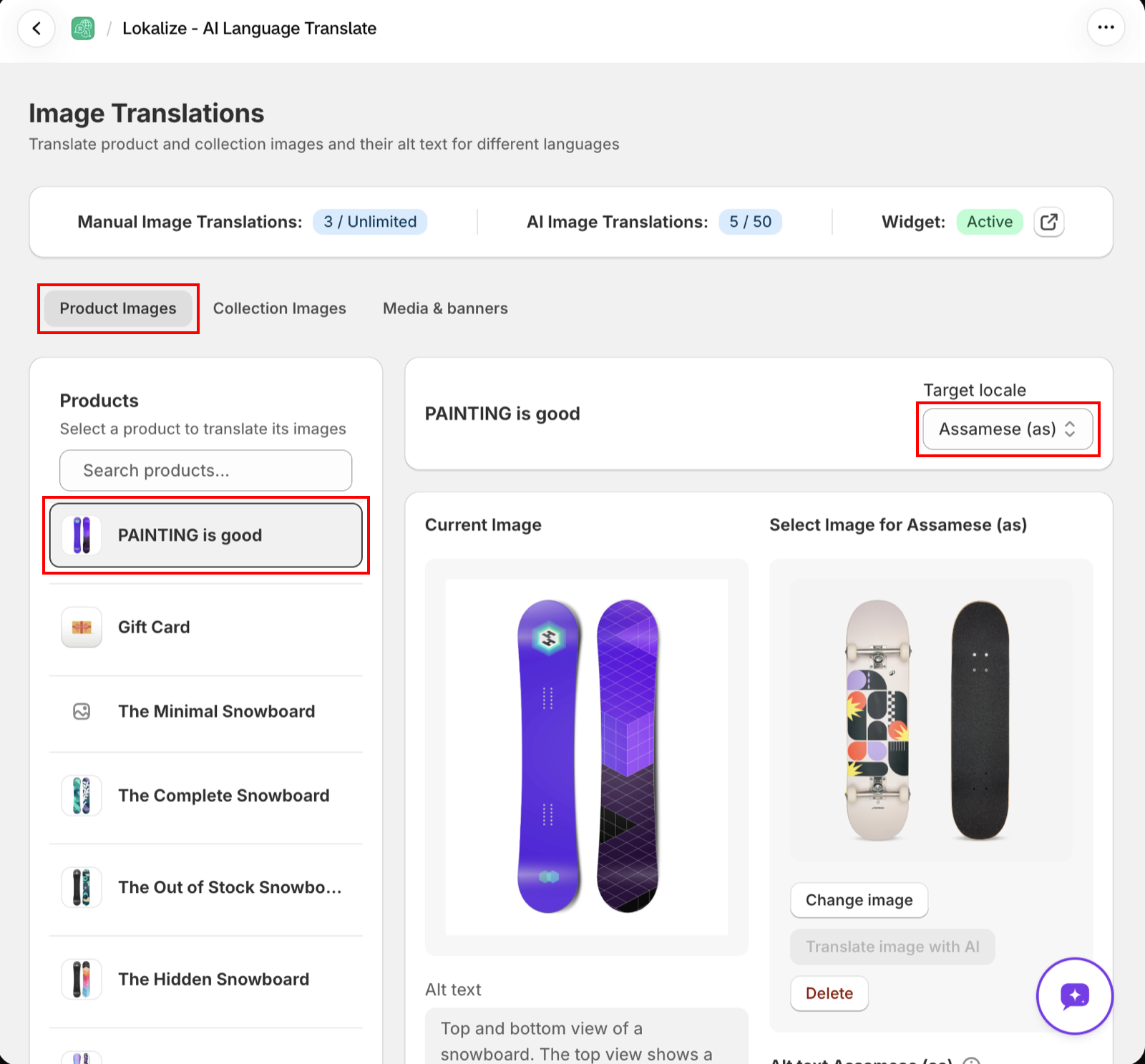
- Open Image Translations from the left sidebar.
- Pick a tab: Product Images, Collection Images, or Media & banners.
- Select a product, collection, or banner from the list on the left.
- Choose the language in the Target locale dropdown.
- Under Select Image to Translate, click the image that has text in it.
Step 3: Translate the image with AI
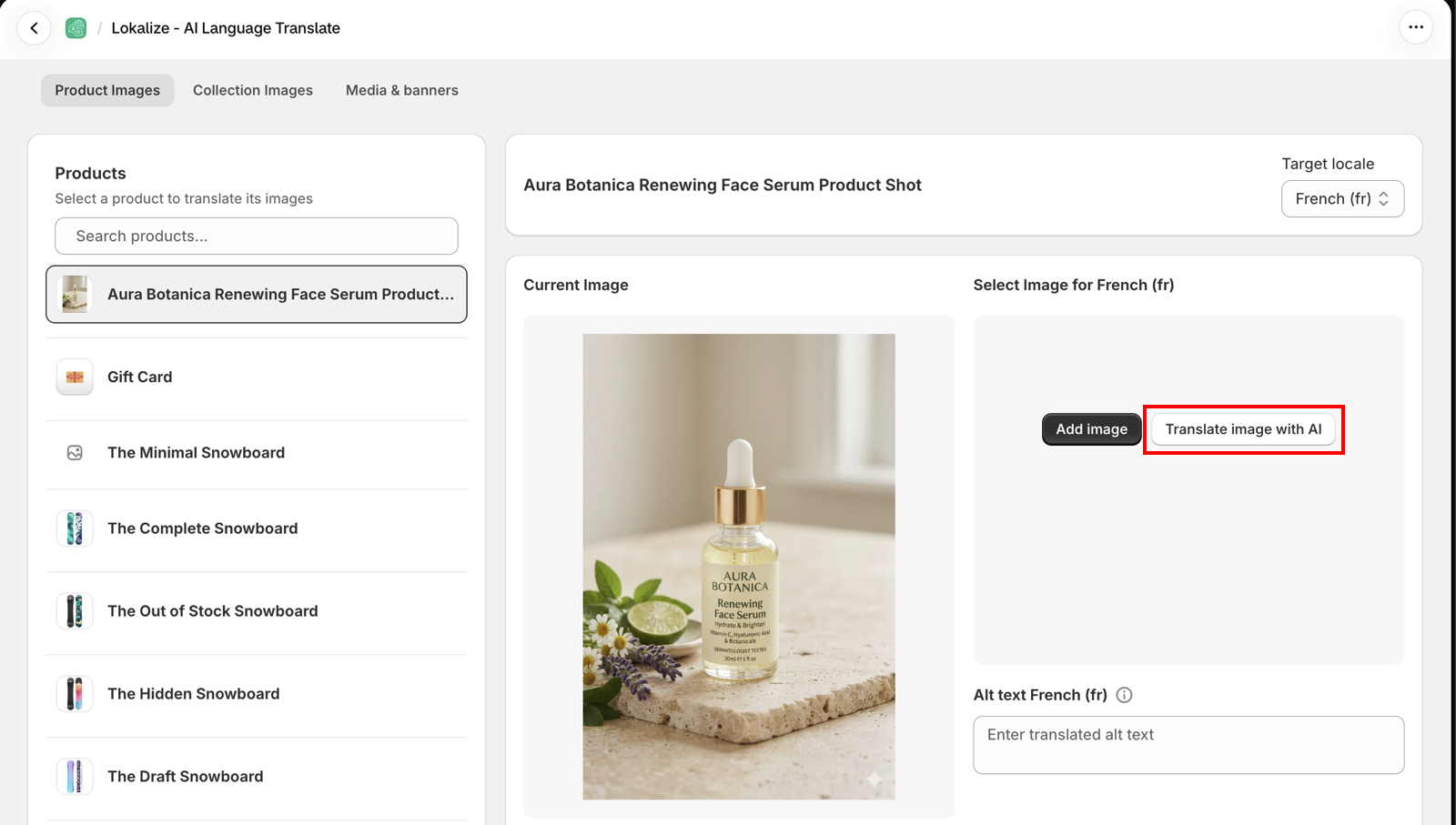
- Click Translate image with AI.
- Wait a few seconds while the image is translated — it usually takes about 15 seconds.
This uses one AI image translation. You can see how many you've used in the AI Image Translations counter at the top of the page.
Step 4: Review the result
The translated image appears on the right, next to Current Image on the left, so you can compare them side by side. Check that:
- the text is translated correctly and reads naturally, and
- the rest of the image — the product, colors, and layout — looks the same.
If you're not happy with it, you have three options:
- Try again — generate a new version. This uses another AI image translation.
- Download — save a copy of the image to your computer.
- Delete — throw the result away without saving.
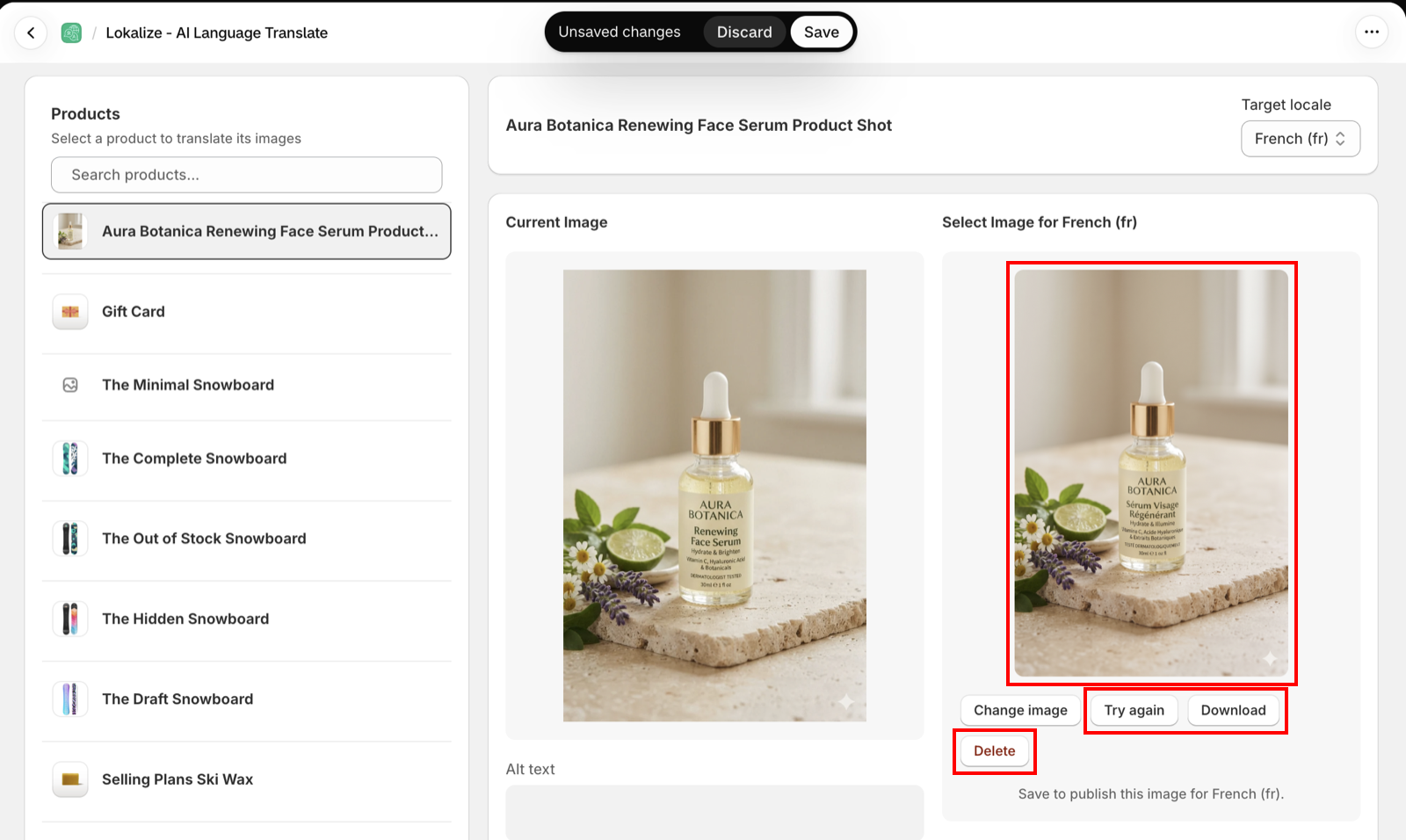
If the AI returns the image at a slightly different size, Lokalize adjusts it to match the original automatically. If the difference is too large to fix without distorting the image, you'll see a yellow note asking you to check how it looks before saving.
Step 5: Save the translated image
- Click Save in the save bar at the top of the page.
- Wait for the Image translation saved successfully confirmation.
The translated image is added to your Shopify Files (for example summer-banner-fr.jpg) and set as the image for that language.
:::note Screenshot pending The save bar with the Save button highlighted, and the success confirmation. :::
Step 6: Show translated images on your storefront
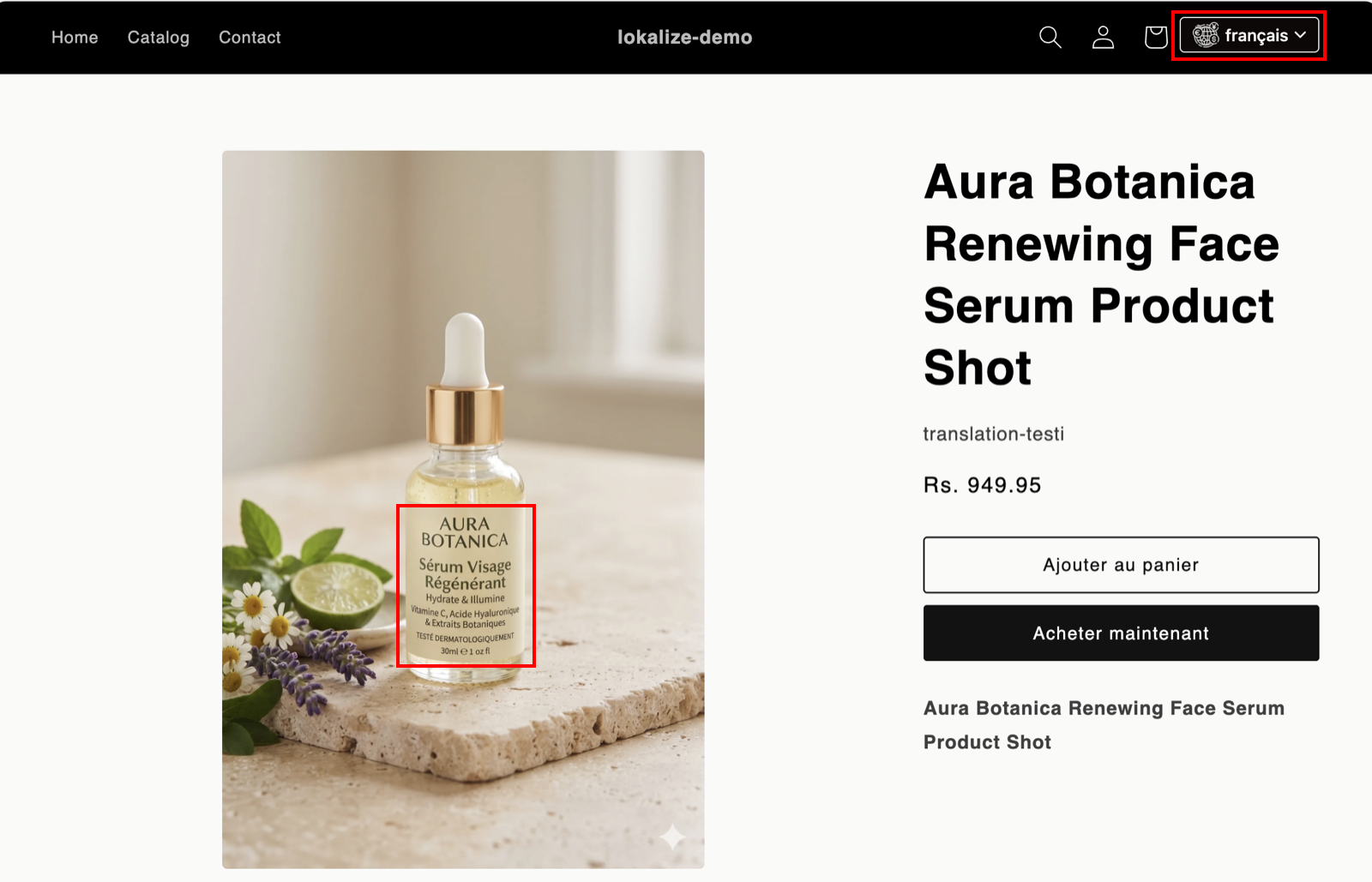
Translated images only appear on your storefront when the Image and Custom Translation Widget is enabled in your theme.
- Check the Widget badge at the top of the Image Translations page.
- If it shows Inactive, follow Show translated images on your storefront.
If the Widget badge already shows Active, you're done — customers browsing in that language now see the translated image.
How AI image translations are counted
- Every attempt counts, including Try again — even if you don't save the result.
- Failed attempts don't count. If the AI can't translate an image, you see an error and your allowance isn't used.
- Your allowance resets monthly on the 1st (UTC). Unused AI image translations don't roll over.
- It's separate from manual image translations. Saving an AI-translated image doesn't use up your AI allowance a second time.
Supported images
- Formats: JPEG, PNG, and WebP.
- Size: up to 8 MB.
- Not supported: SVG and GIF images. Upload your own translated version instead — see How to translate and replace images.
The translated image is created at high resolution (about 2,000 pixels on the long side).
Frequently asked questions
Why is the Translate image with AI button disabled?
Hover over the button to see why. The most common reasons are:
- your plan doesn't include AI image translation (it's available on Premium and above),
- the selected language doesn't have AI Enabled turned on, or
- you've used all your AI image translations for this month.
Does it change anything other than the text?
It's designed to translate only the text and keep everything else the same. Because the image is recreated by AI, small details can occasionally differ — that's why you always review the result before saving.
What happens if my image has no text?
The AI has nothing to translate, so you'll see a "Couldn't translate this image" message. Your allowance isn't used.
Does it translate the image's alt text too?
No. Alt text is translated separately with the Translate button next to the alt-text field, which uses word credits. See How to translate and replace images.
How do I remove an AI-translated image?
Select it, click Delete, then Save. Your storefront goes back to showing the original image for that language. The file stays in your Shopify Files in case you use it elsewhere.