How to choose a translation engine
A translation engine is the underlying service that converts your text from one language to another. Different engines have different strengths — speed, tone, and language coverage all vary. Lokalize lets you choose, and your selection applies to bulk translate, auto-translate, and per-field AI translate.
Change your engine
- Open Lokalize → Settings → Translation Settings.
- Choose your engine under Translation Engine.
- Save.
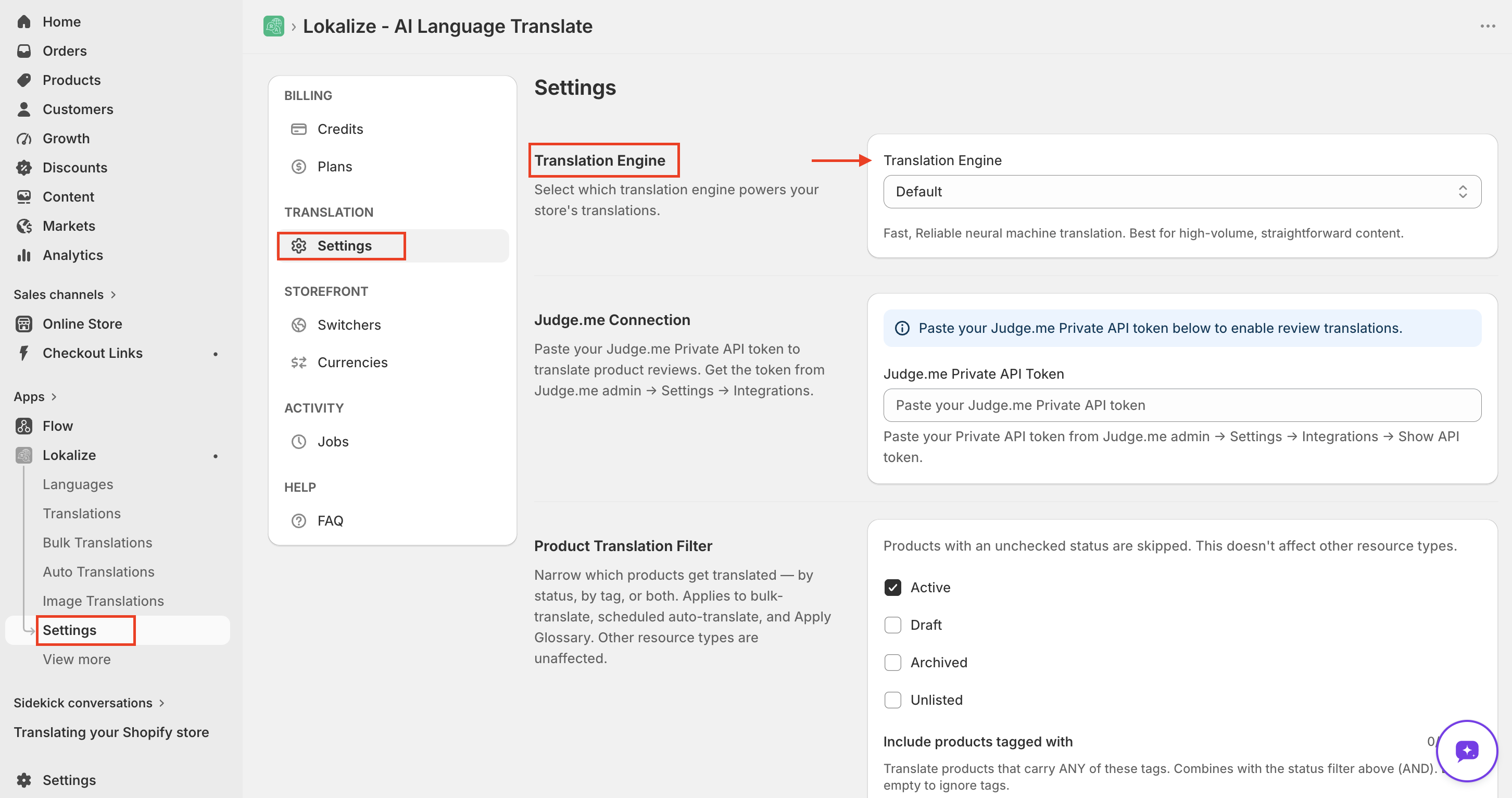
The change takes effect immediately and applies to future translations only — existing translations aren't re-translated. If you downgrade to a plan that doesn't include your current engine, Lokalize switches you back to the Default engine.
The built-in engines
Default
The standard engine, available on every plan including Basic. Fast, reliable neural machine translation with the broadest language coverage. Best for high-volume, straightforward content like product specs, size guides, and policy pages.
ChatGPT
Available on Pro and higher. AI-powered translation with improved accuracy, tone awareness, and natural phrasing. Best for marketing copy, hero sections, and customer-facing content where tone matters.
Bring your own key (Business)
On the Business plan, you can connect your own provider account and use these engines with your own API key:
- DeepL (BYOK)
- DeepSeek (BYOK)
- ChatGPT (BYOK)
- Gemini (BYOK)
- Claude (BYOK)
How BYOK works:
- Paste your provider API key in Settings → Translation Settings → Translation Engine after selecting your engine of choice. Your key is stored encrypted.
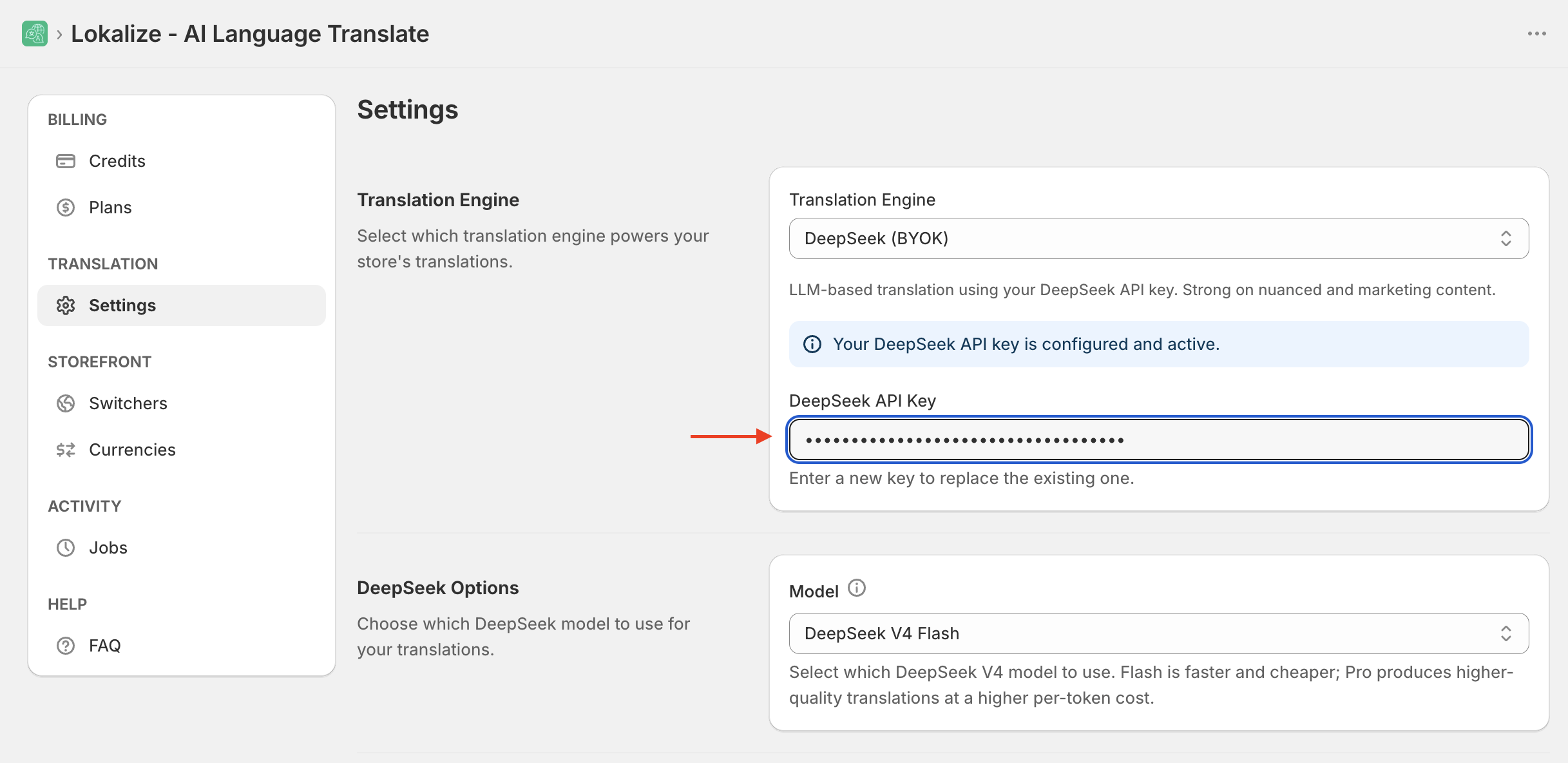
- Translations made with a BYOK engine are billed directly by your provider, not against your Lokalize word balance.
- If your key is invalid or your provider rejects a request, the error is surfaced so you can fix it — BYOK never silently falls back to another engine.
All costs are your responsibility and are billed directly to your provider's account. Please ensure you have enough credits.
Get your API key
ChatGPT (OpenAI)
- Go to platform.openai.com and sign in or create an account.
- In the left sidebar, click API Keys.
- Click Create new secret key, give it a name, and copy it — you won't be able to see it again after closing the dialog.
- Go to Settings → Billing and add a credit balance. OpenAI requires a prepaid balance before API calls are accepted.
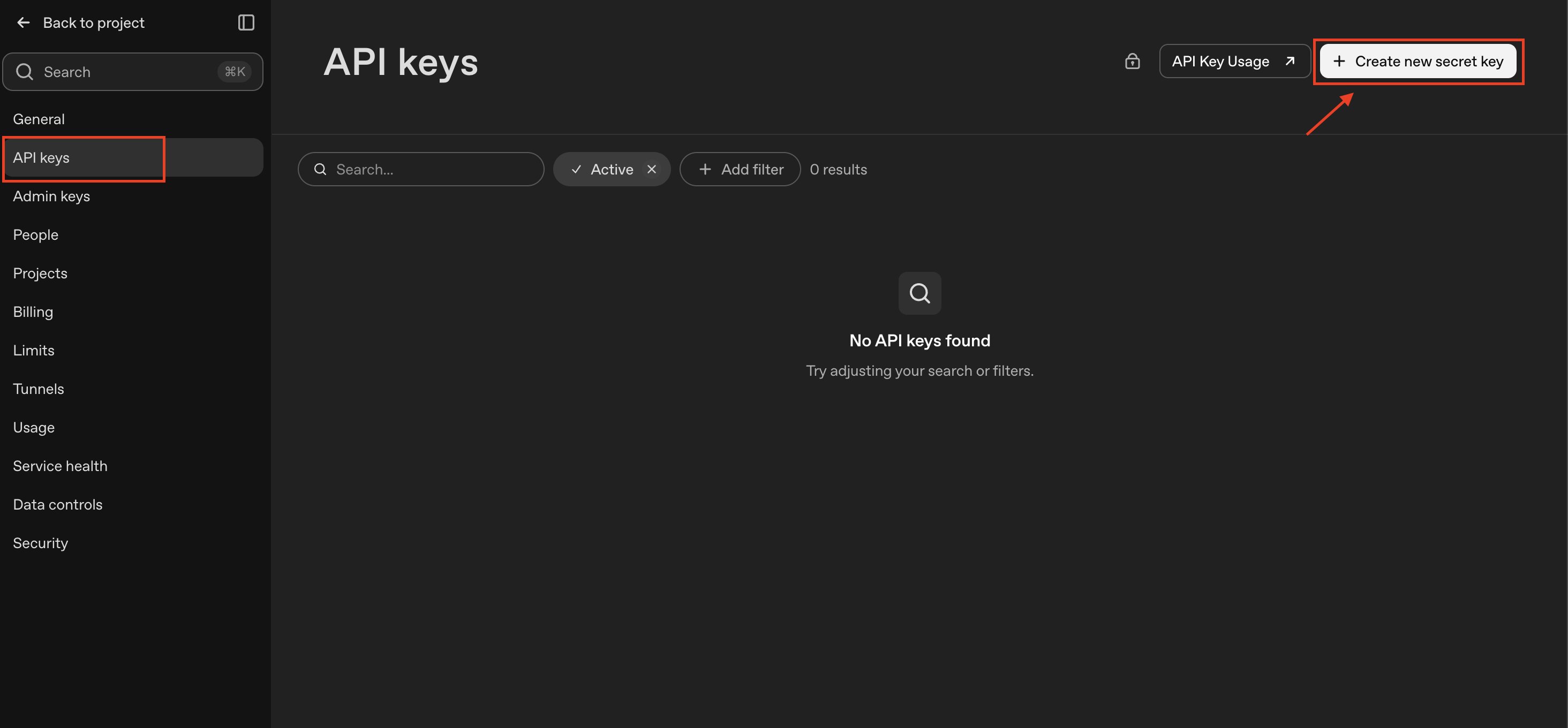
Paste the key into Lokalize → Settings → Translation Settings → Translation Engine → ChatGPT (BYOK).
Start with a small top-up (e.g. $5–10) to test. You can add more as needed. OpenAI charges per token — translation costs are typically very low.
DeepL
- Go to deepl.com/pro and sign up for an API plan.
- DeepL API Free — includes 500,000 characters per month at no cost. Good for testing or low-volume use.
- DeepL API Pro — pay-per-character beyond the free tier, with no monthly cap.
- After signing up, open your DeepL account and go to the Account → API Keys & limits section.
- Copy your authentication key. Free-plan keys end in
:fx— this is normal.
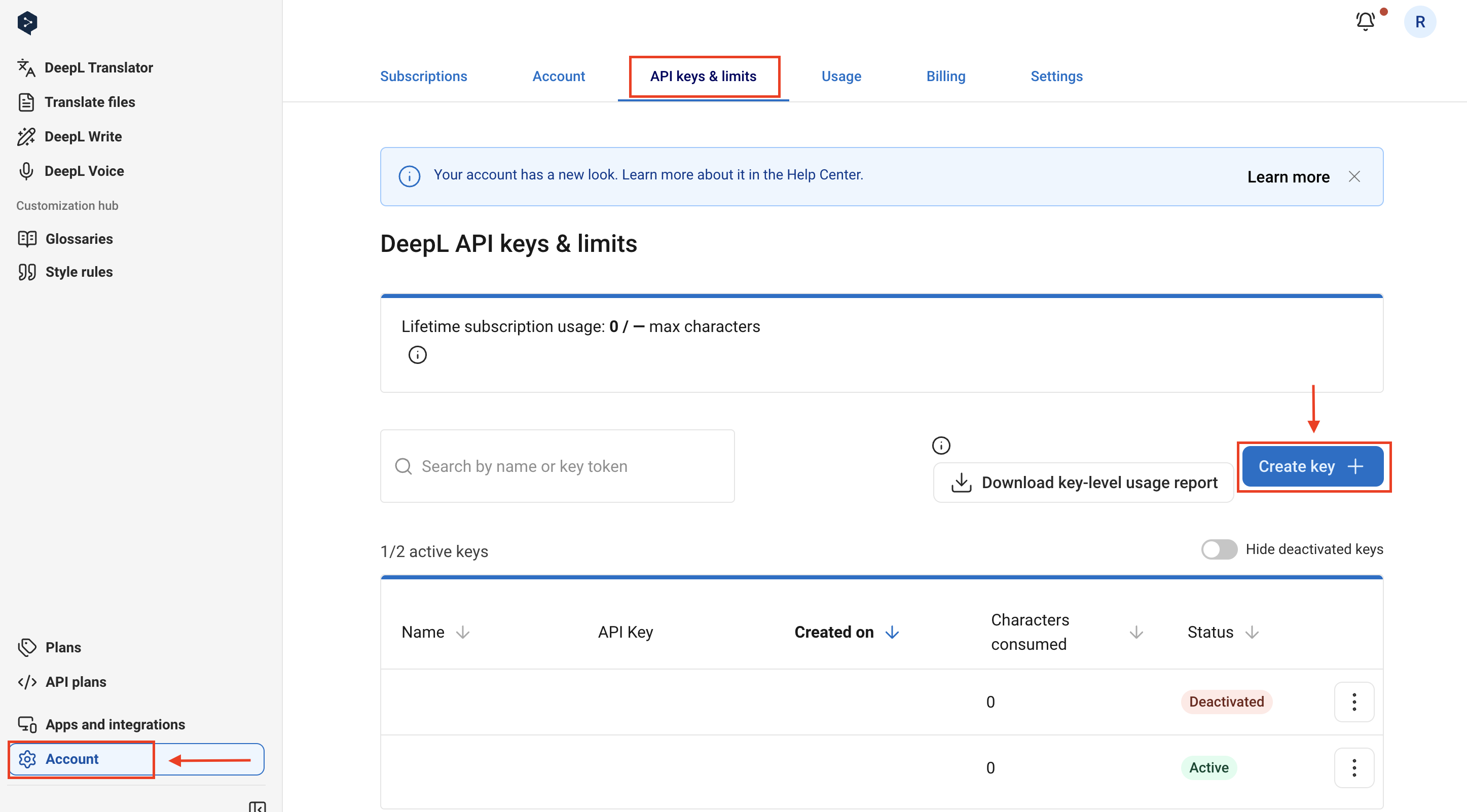
Paste the key into Lokalize → Settings → Translation Settings → Translation Engine → DeepL (BYOK).
The DeepL API is separate from a regular DeepL subscription (DeepL Pro for the web app). Make sure you sign up for an API plan, not the translator subscription.
DeepSeek
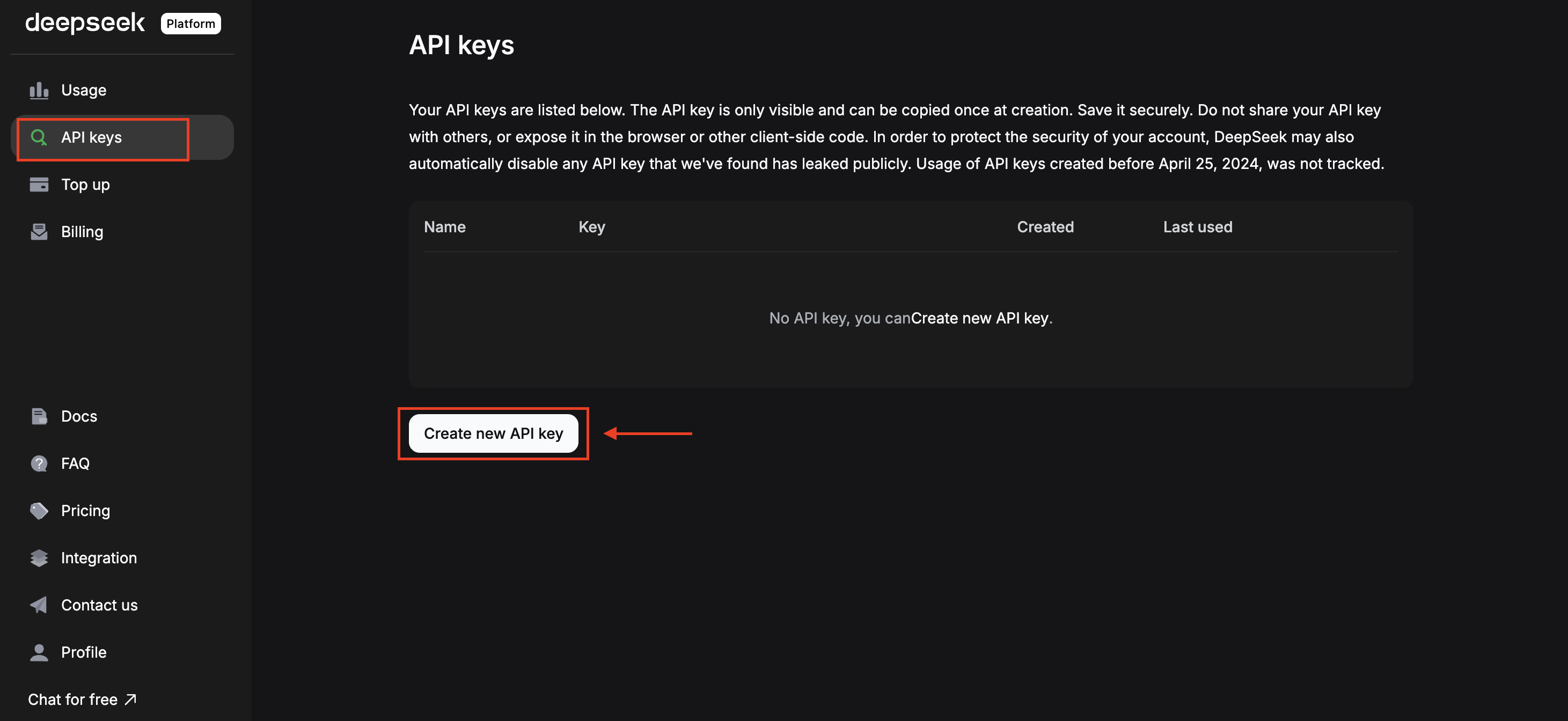
- Go to platform.deepseek.com and create an account.
- In the left sidebar, go to API Keys.
- Click Create API Key, give it a name, and copy it immediately.
- Go to Top Up and add credits to your balance. DeepSeek is pay-as-you-go — you need a positive balance for API calls to succeed.
Paste the key into Lokalize → Settings → Translation Settings → Translation Engine → DeepSeek (BYOK).
Gemini (Google AI Studio)
- Go to aistudio.google.com/api-keys and sign in with your Google account.
- In the left sidebar under Project, click API Keys.
- Click Create API key in the top right.
- Choose an existing Google Cloud project or let AI Studio create one for you.
- Copy the key and store it somewhere safe.

Paste the key into Lokalize → Settings → Translation Settings → Translation Engine → Gemini (BYOK).
Once your key is saved, a Gemini Options card appears where you can pick the model:
- Gemini 3.6 Flash — the newest model, strongest on tone and idiom, highest per-token price.
- Gemini 3.5 Flash — very close in quality at a lower price. A good middle ground.
- Gemini 3.1 Flash-Lite — cheapest and fastest. Best for large product catalogues.
Google AI Studio includes a free tier with rate limits, so you can test before paying anything. If you hit the limits during a large bulk translate, enable billing on the linked Google Cloud project to raise them.
Claude (Anthropic)
- Go to platform.claude.com and sign in or create an account.
- In the left sidebar of the Claude Console, click API keys.
- Click Create key, give it a name, and copy it — you won't be able to see it again after closing the dialog.
- Add credits under Billing. The Claude API is prepaid: calls are rejected until your account has a positive balance.

Paste the key into Lokalize → Settings → Translation Settings → Translation Engine → Claude (BYOK).
Once your key is saved, a Claude Options card appears where you can pick the model:
- Claude Opus 5 — the most capable model, best on brand voice and marketing copy. Premium pricing.
- Claude Sonnet 5 — high quality at mid-tier pricing. A good balance for mixed catalogues.
- Claude Haiku 4.5 — fastest and cheapest. Best for product catalogues and high-volume bulk jobs.
Start with a small credit top-up (e.g. $5) and Claude Haiku 4.5 to test. Translation is a light task — costs are typically very low, and you can switch to a stronger model for marketing pages later.
LLM engines may not support every language Lokalize offers, and accuracy varies by language and content type. If you're unsure, translate a small batch first and compare the results before committing to a single engine.
Glossary works with every engine
Whichever engine you choose, your Glossary rules are respected, so brand names and preferred terms stay consistent everywhere.
Frequently asked questions
Does the Glossary work with all translation engines?
Yes. Glossary rules are applied regardless of which engine you use — Default, ChatGPT, or any BYOK engine. Your brand names and preferred terms stay consistent everywhere.
Do theme translations use credits with BYOK engines?
Yes. When using a BYOK engine, theme translations hit your provider's API and are billed by them. Theme content is only free when using Lokalize's platform engines (Default, ChatGPT).
What happens to my engine setting if I downgrade my plan?
If your current engine is not available on the new plan, it is automatically reset to the Default engine. Existing translations are not affected — only future translations use the new engine.