How to auto-translate your store
Auto-Translate keeps your store translated without you lifting a finger. Once it's set up, it runs on a recurring schedule and translates new and updated content automatically — so you don't have to start a translation every time you add or change a product.
Auto-Translate is available on the Premium and Business plans. See Lokalize plans compared.
Set up Auto-Translate
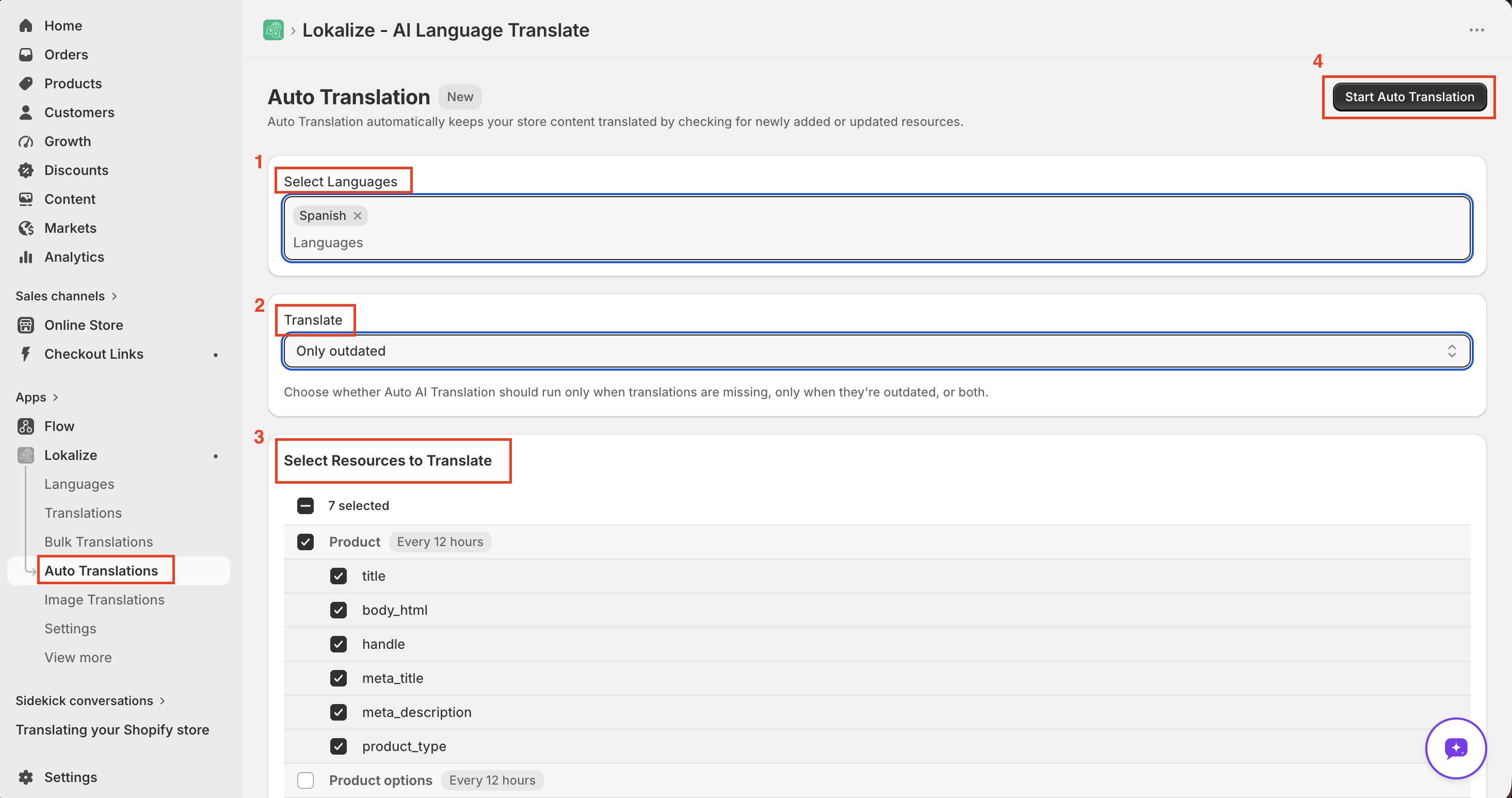
- Open Lokalize → Auto Translations.
- Choose your target languages — only AI-enabled languages appear.
- Choose a translation scope (see below).
- Select the resource types you want translated — products, collections, pages, and more.
- Click Start Auto Translation.
You can also choose which fields each resource type translates — all fields, or specific ones like title only. This gives you fine-grained control and helps conserve credits.
Auto-Translate begins translating on its scheduled interval. It runs every 12 hours, and your schedule is anchored to when you first enable the feature.
Translation scope
Scope controls which content gets translated:
- Untranslated — only content that has no translation yet.
- Outdated — only content where the source text has changed since it was last translated.
- Outdated or Untranslated (the default) — handles both.
This makes sure you don't spend credits on content that's already up to date.
Judge.me reviews are always translated when new and skipped when already translated, regardless of your scope setting. See How to translate Judge.me reviews.
Manage and stop Auto-Translate
- Only one configuration can be active at a time. You can create several, but enable just one — disable the active one before enabling another.
- To stop, open the Auto Translations page and click Stop. The scheduled job is cancelled immediately, and your configuration is saved so you can re-enable it later without reconfiguring.
If a run fails
Failed runs are retried automatically. If a failure keeps happening — for example, due to insufficient credits or an expired session — the error is logged and that run is skipped. Your existing translations aren't affected. Re-authenticate the app or add credits to resolve it.
Frequently asked questions
How often does Auto-Translate run?
Auto-Translate runs every few hours. Each shop's schedule is anchored to when you first enabled the feature, so your runs are distributed evenly and consistent.
Can I have multiple Auto-Translate configurations?
Only one configuration can be active at a time. You can create multiple configurations, but only one can be enabled — disable the active one before enabling another.
What happens if an Auto-Translate run fails?
Failed runs are automatically retried. If the failure persists — for example due to insufficient credits or an expired session — the error is logged and that run is skipped. Your existing translations are not affected. Re-authenticate the app or add credits to resolve the issue.