How to translate Judge.me reviews
Lokalize translates your Judge.me product reviews into every language you sell in. This guide walks you through the full setup — adding a language, connecting Judge.me, enabling the storefront block, and translating your reviews.
Judge.me review translation is available on Premium and above.
Step 1: Add and AI-enable a language
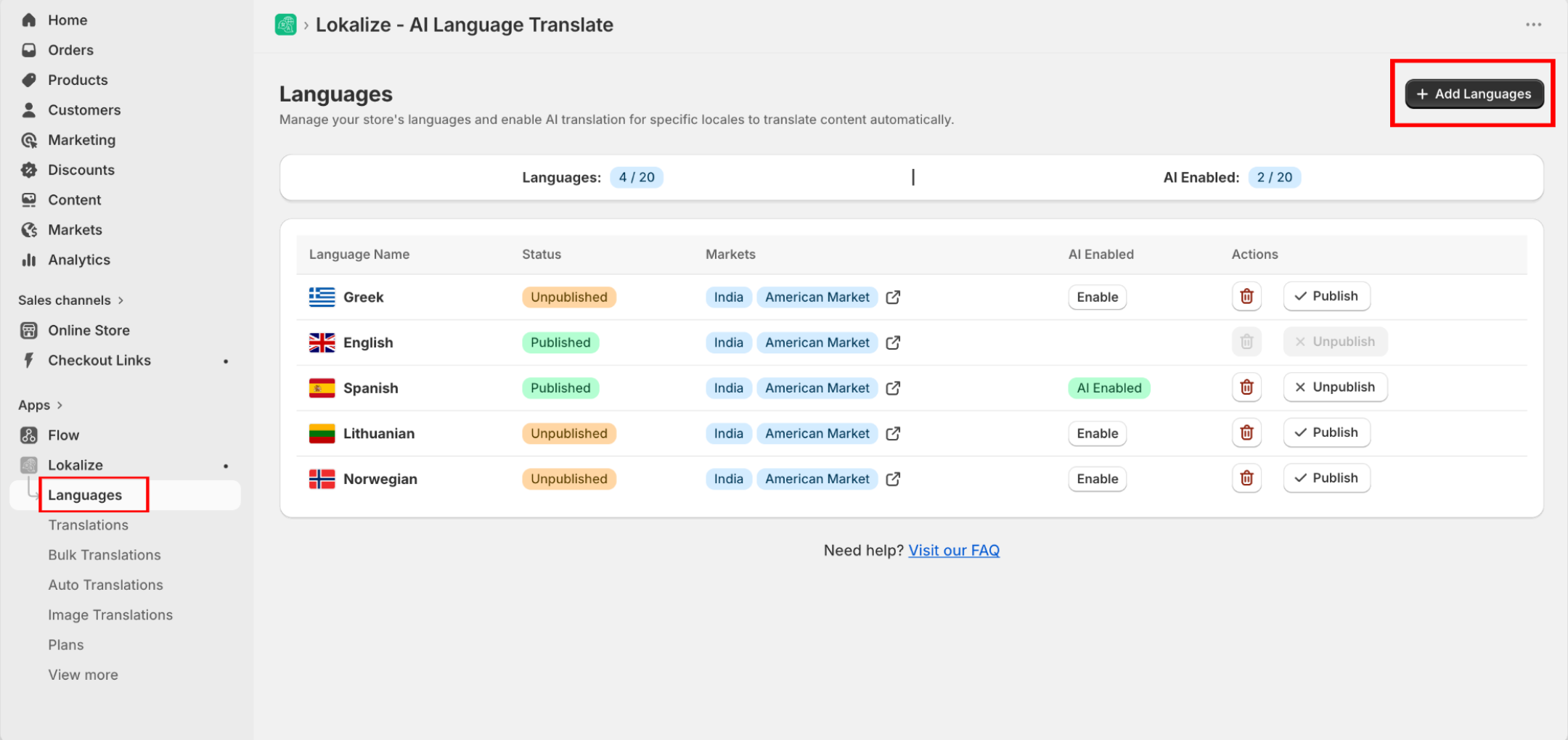
- In Lokalize, open the Languages page from the left sidebar.
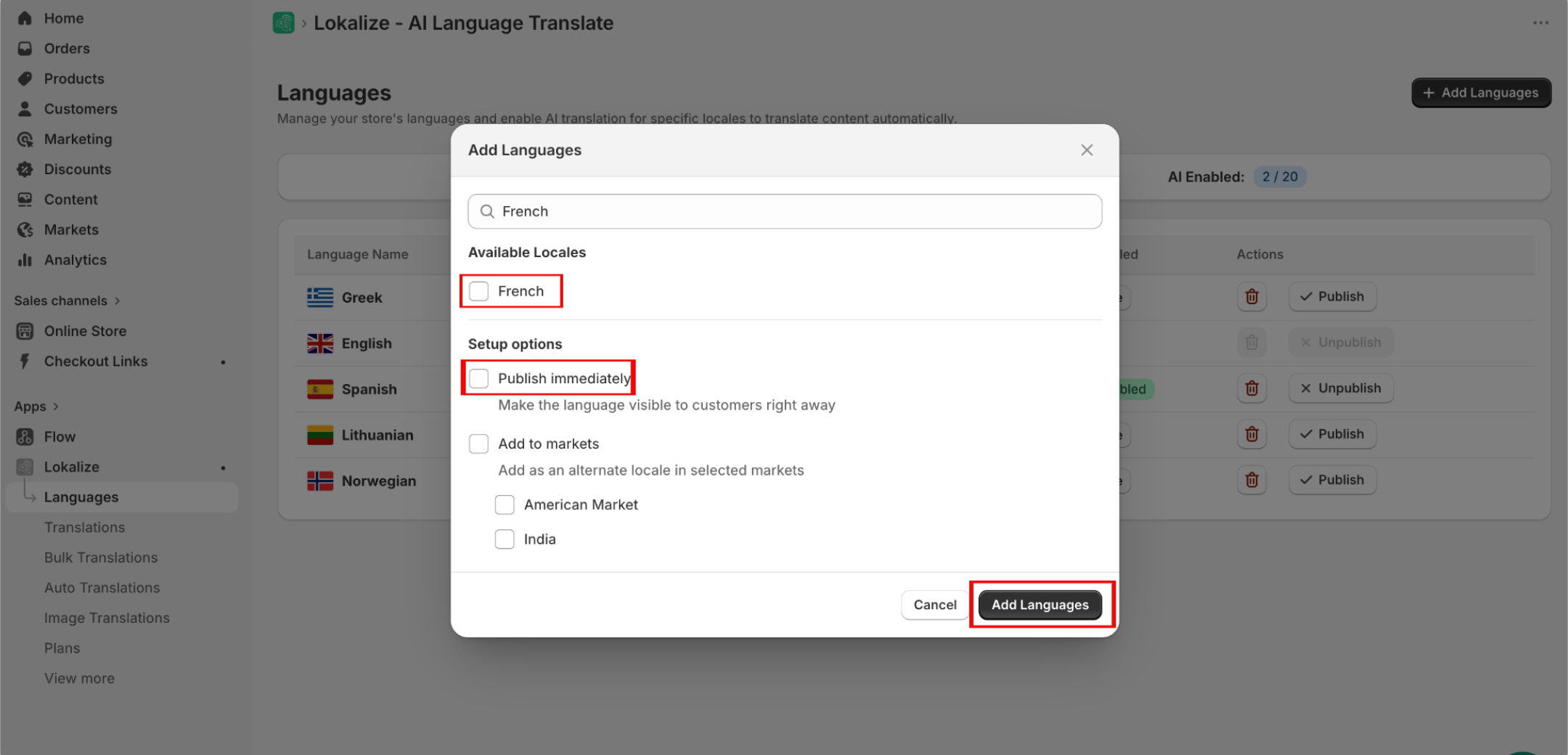
- Click Add Languages and pick the languages you want to translate into.
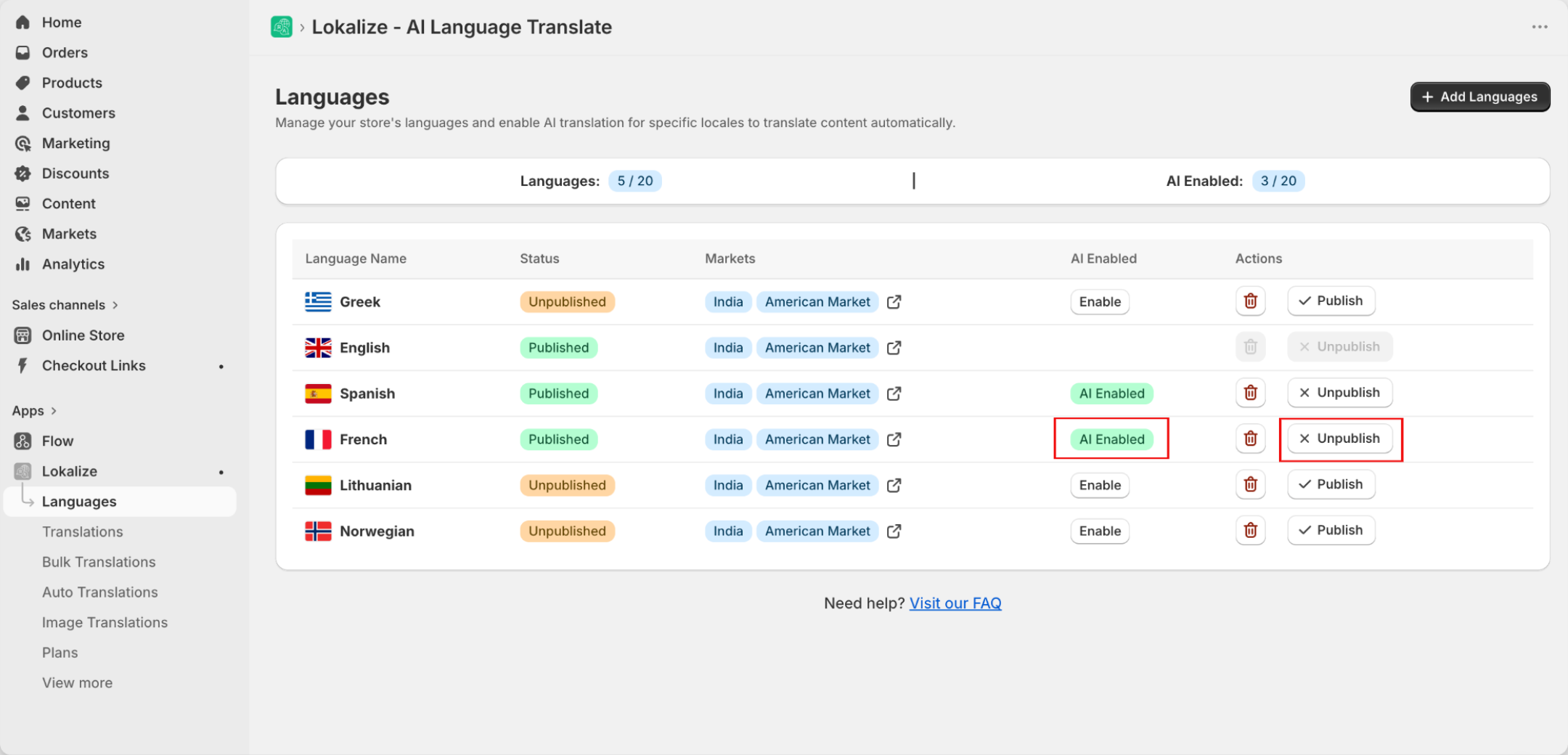
- For each language you want Lokalize to translate automatically, toggle on AI Enabled.
- Publish the language so that it appears in the storefront.
Step 2: Copy your Judge.me API token
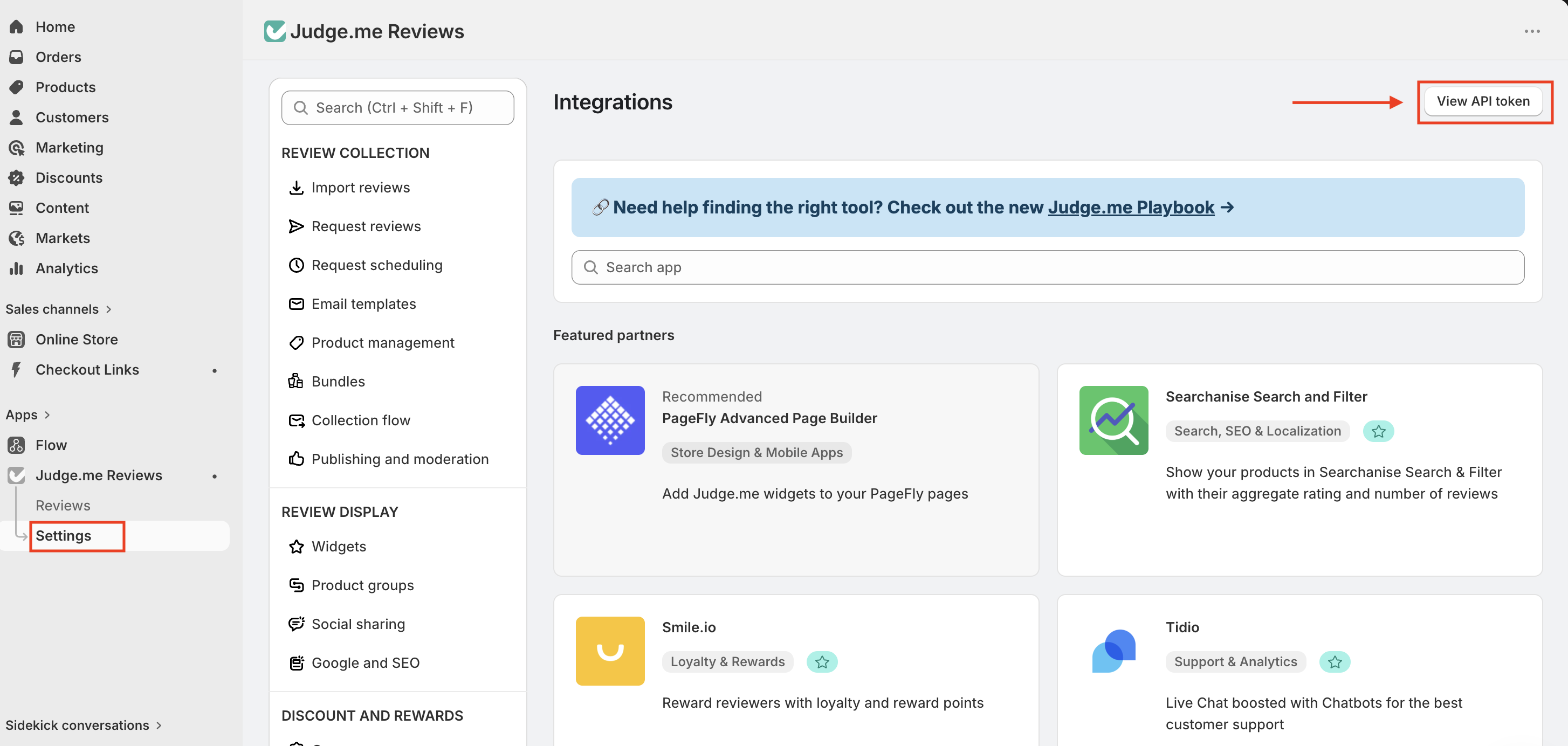
- In your Judge.me admin, navigate to Settings → Integrations.
- Click View API tokens in the top-right corner.
- Find the Private API token row.
- Copy the API token to your clipboard.
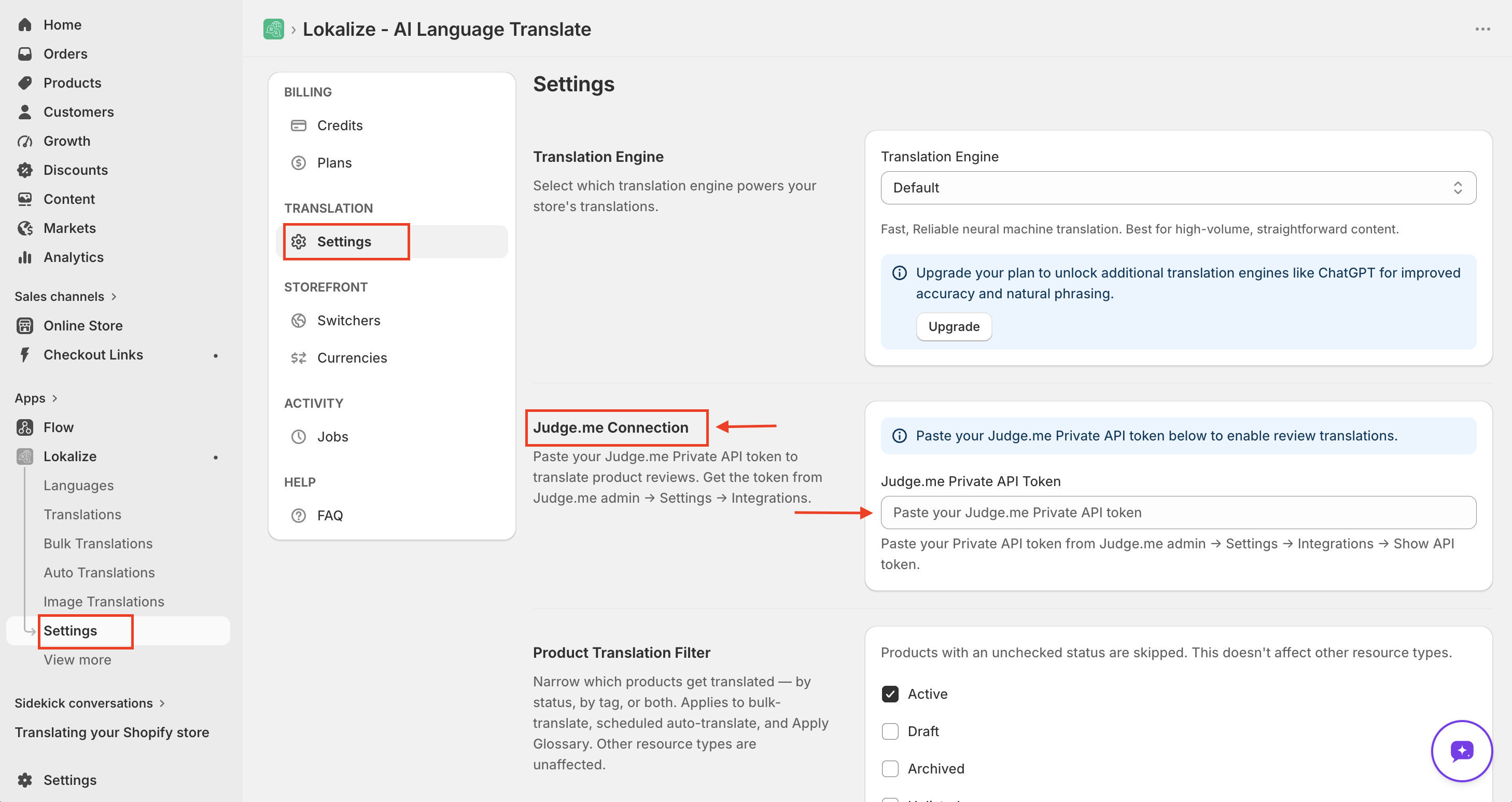
Step 3: Add the Judge.me API token in Lokalize
- In Lokalize, open Settings → Translation Settings.
- Scroll to the Judge.me Connection card.
- Paste your Judge.me Private API token into the Judge.me Private API Token field.
- Click Save in the contextual save bar that appears at the bottom of the page.
Step 4: Add the Lokalize theme block to your storefront
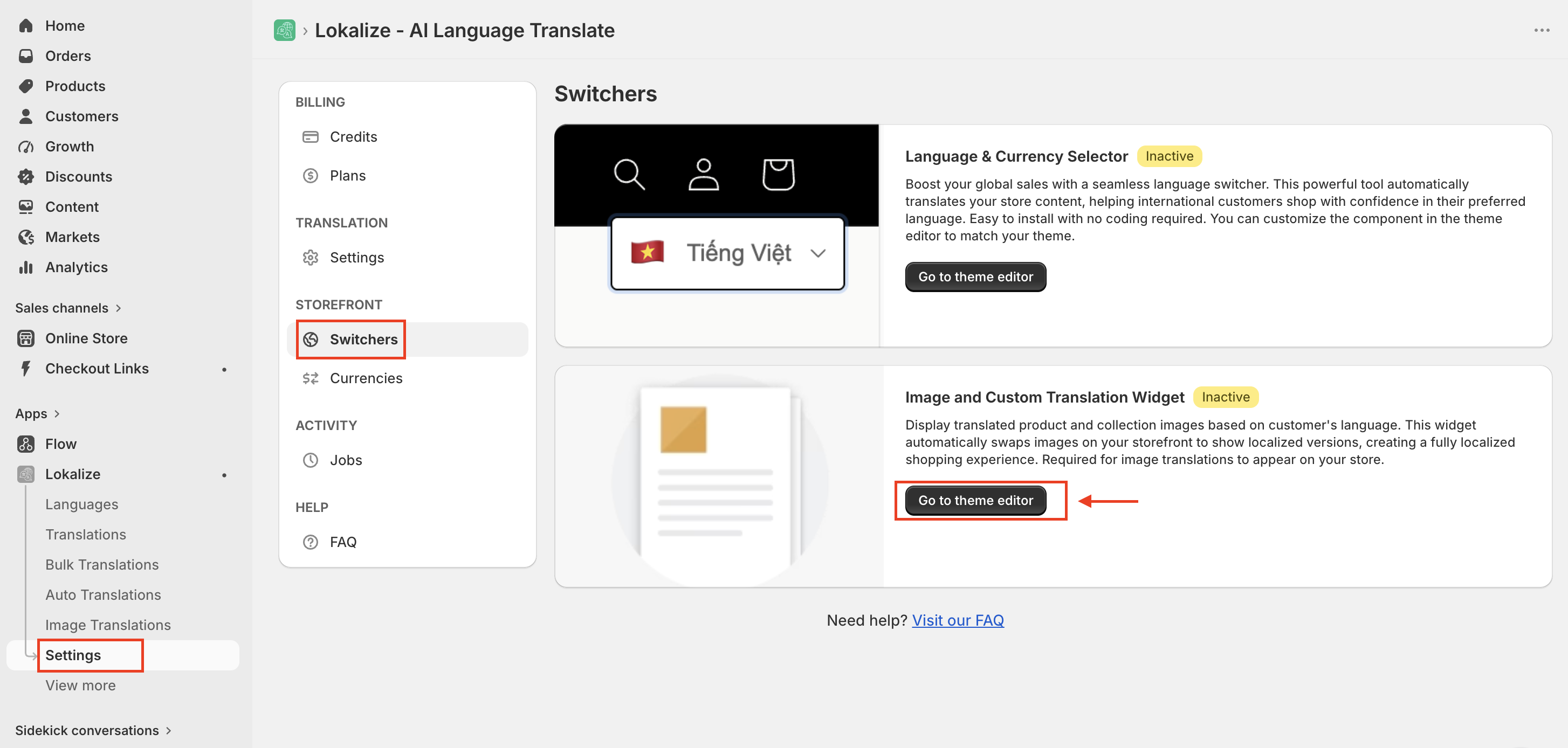
- In Lokalize, open the Settings -> Switchers page from the left sidebar.
- Click Go To Theme Editor next to the Image and Custom Translation Widget card.
- Enable the widget in your storefront and click Save.
- Your theme editor opens with the Lokalize app block ready to add. Click Save in the theme editor.
If the badge on the card already shows Active, the block is enabled and you can skip this step.
Step 5: Translate your Judge.me reviews
You have two ways to translate reviews — pick whichever fits your workflow.
Option A: Bulk translate every review (recommended for first-time setup)
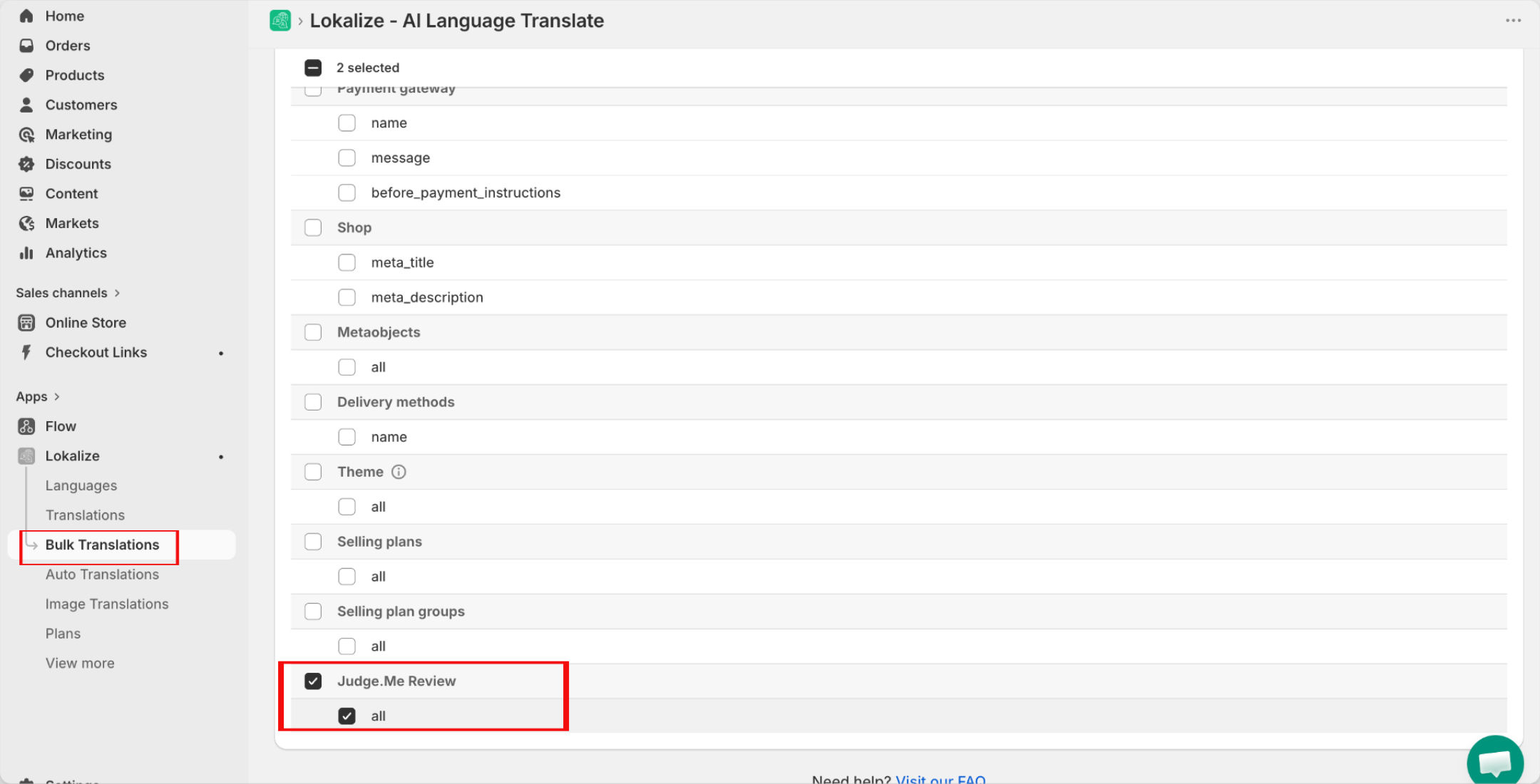
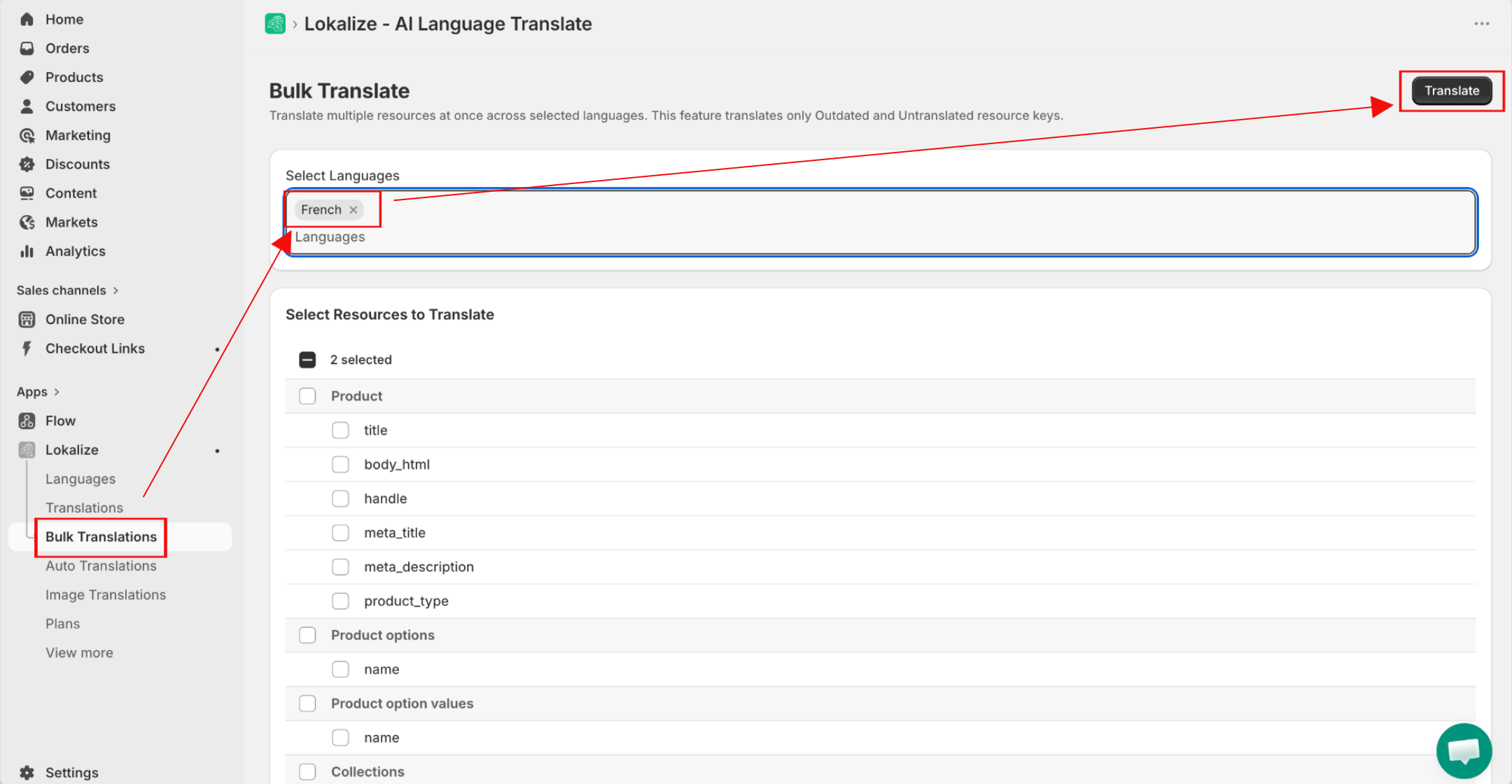
- In Lokalize, open the Bulk Translate page from the left sidebar.
- In the resource list, tick Judge.me Reviews.
- In the language picker, select every language you want to translate into.
- Click Translate.
Option B: Translate individual reviews on demand
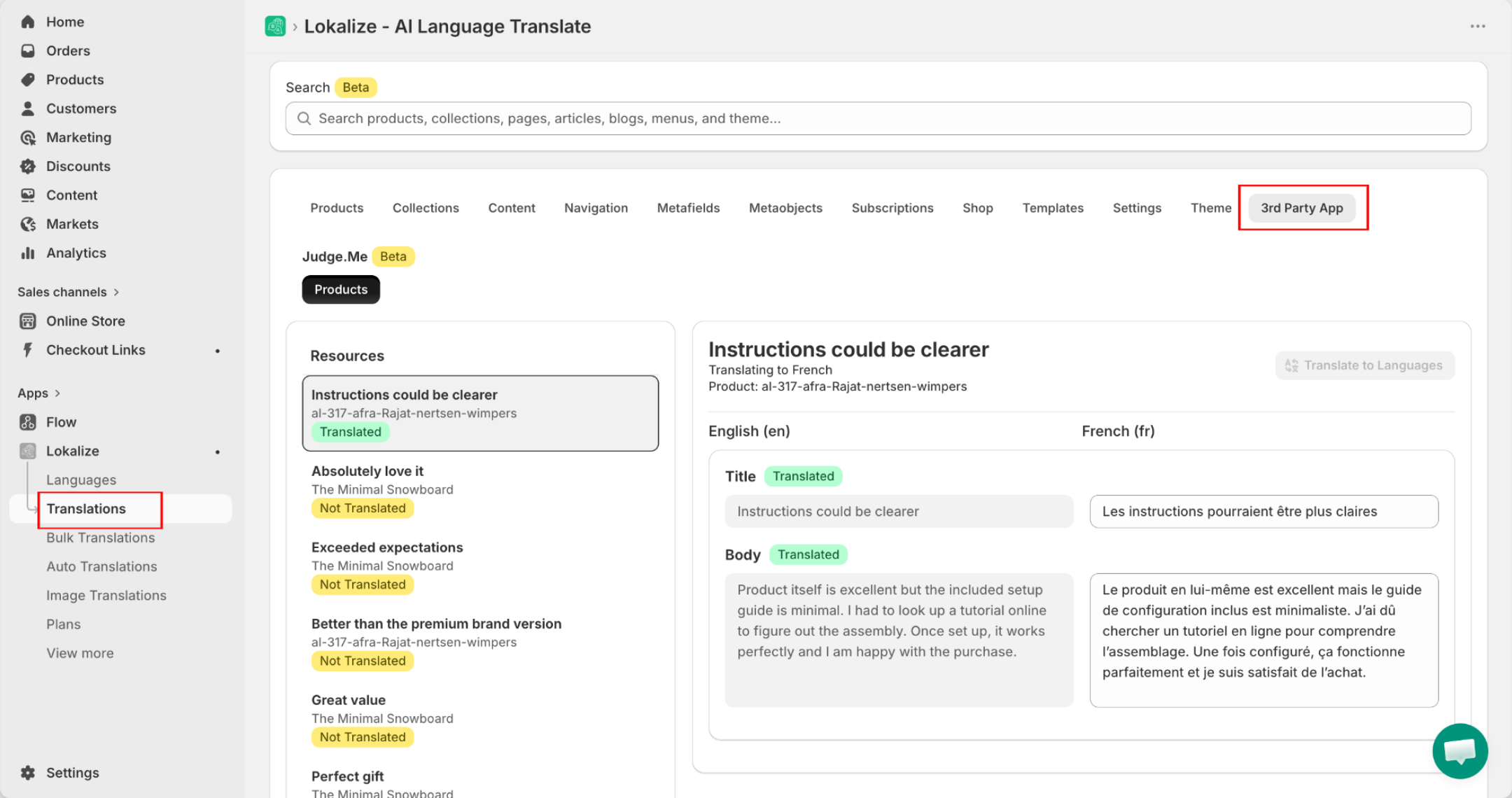
- Open the Translations page from the left sidebar.
- In the language picker at the top, switch the target language to the one you want to translate into.
- In the tab bar, click the 3rd Party App tab.
- Pick a Review from the sidebar.
- Edit individual review translations inline, or click Translate with AI on any field to auto-fill.
Step 6: Set up Auto-Translate for Judge.me reviews (Optional)
Set up Auto-Translate so your reviews stay up to date automatically.
- Open the Auto Translations page from the left sidebar.
- In the resource list, tick Judge.me Reviews.
- In the language picker, select every language you want to translate into.
- Click Start Auto Translation.
Good to know
- Reviews are always translated when new and skipped when already translated, regardless of your translation scope — so you never pay to re-translate the same review. If a review is edited, its new text is picked up on the next run.
- If your token is revoked or expires, Lokalize flags it so you can reconnect from Settings page.
Frequently asked questions
How are Judge.me reviews handled differently from other content?
Judge.me reviews are translated independently of your translation scope setting. Both Bulk Translate and Auto-Translate always translate review text that has not been translated yet and skip reviews that are already translated — so you never pay to re-translate the same review. If a review is edited, its new text is picked up on the next run.
What happens when I run out of credits?
AI translations stop until you have credits available again. Any translations already registered remain in your store. You can wait for your monthly allowance to reset or purchase a word pack to continue immediately.
What happens to Judge.me translation if I cancel my subscription?
You are moved to the Basic (Free) plan, which does not include Judge.me review translation. Translations already stored in your store remain published. You would need to resubscribe to Premium or above to translate new or updated reviews.