How to add and publish a language to your store
Adding a language is the first step to translating your store. You'll add the language, publish it so customers can see it, and enable AI so Lokalize can translate it for you.
Step 1 — Add a language
- Open Lokalize → Languages and click Add Languages.
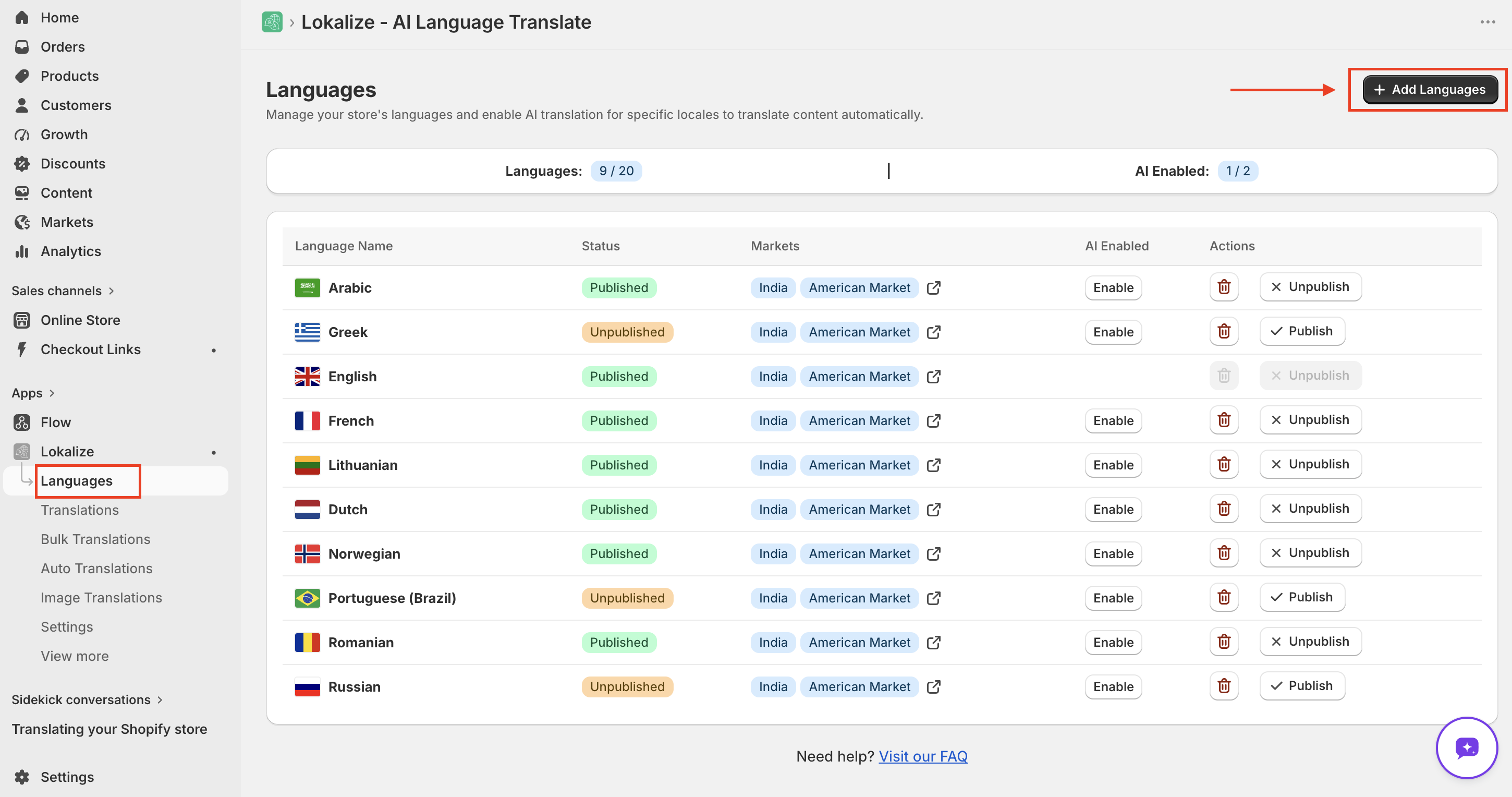
- Choose a language to add. Every language Shopify supports is available — well over one hundred to pick from. You can publish and assign it to a market right now or come back to it later.
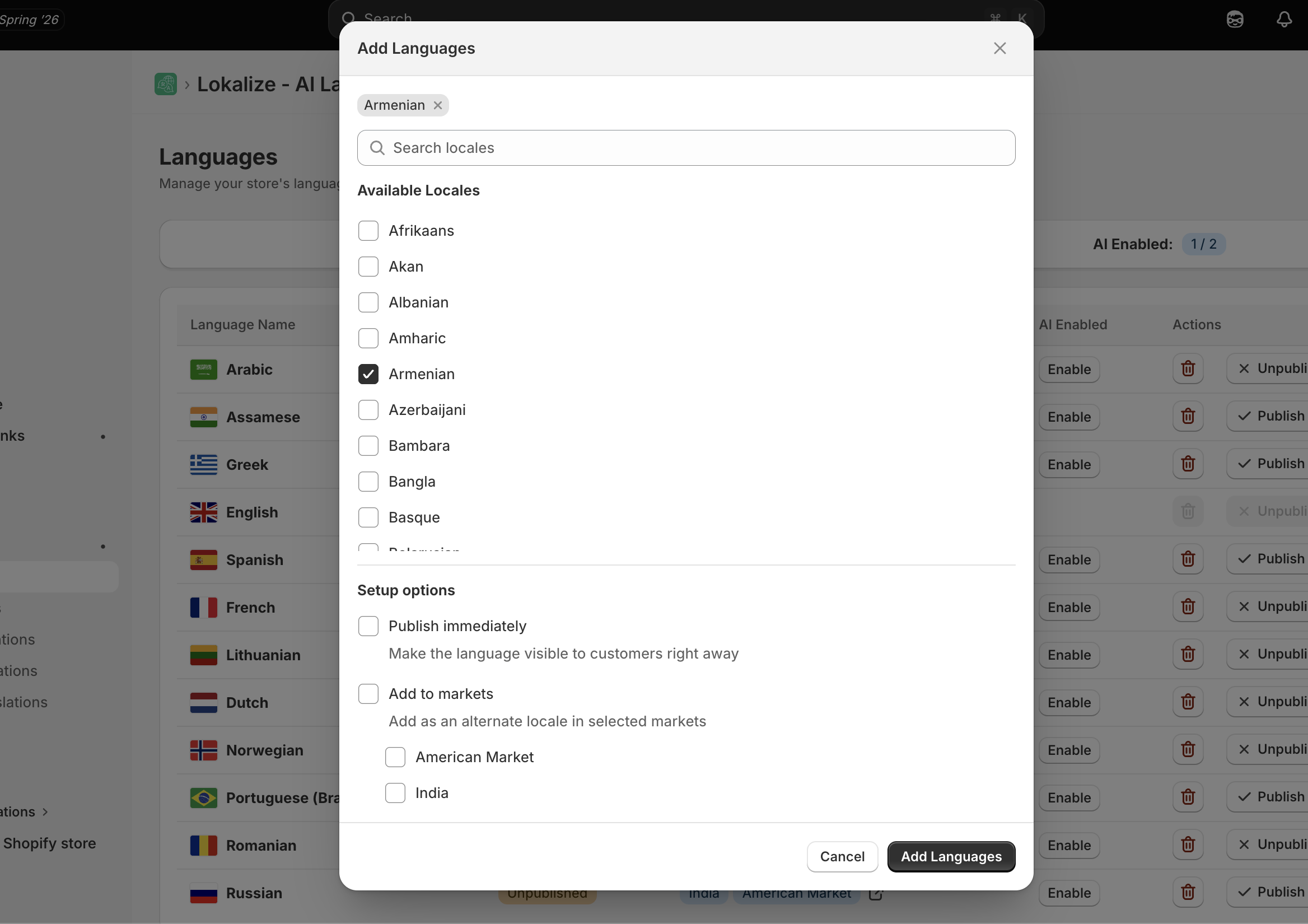
- Click Add Languages to add language(s) to your store.
Shopify allows up to 20 secondary languages per store in addition to your primary language. Lokalize doesn't add any limits beyond Shopify's.
Step 2 — Publish the language and assign it to a market
Publishing in Lokalize is only half the job. Customers won't see the language until it's also assigned to a market in Shopify. Both steps are required.
In Lokalize: on the Languages page, toggle Publish next to the language.
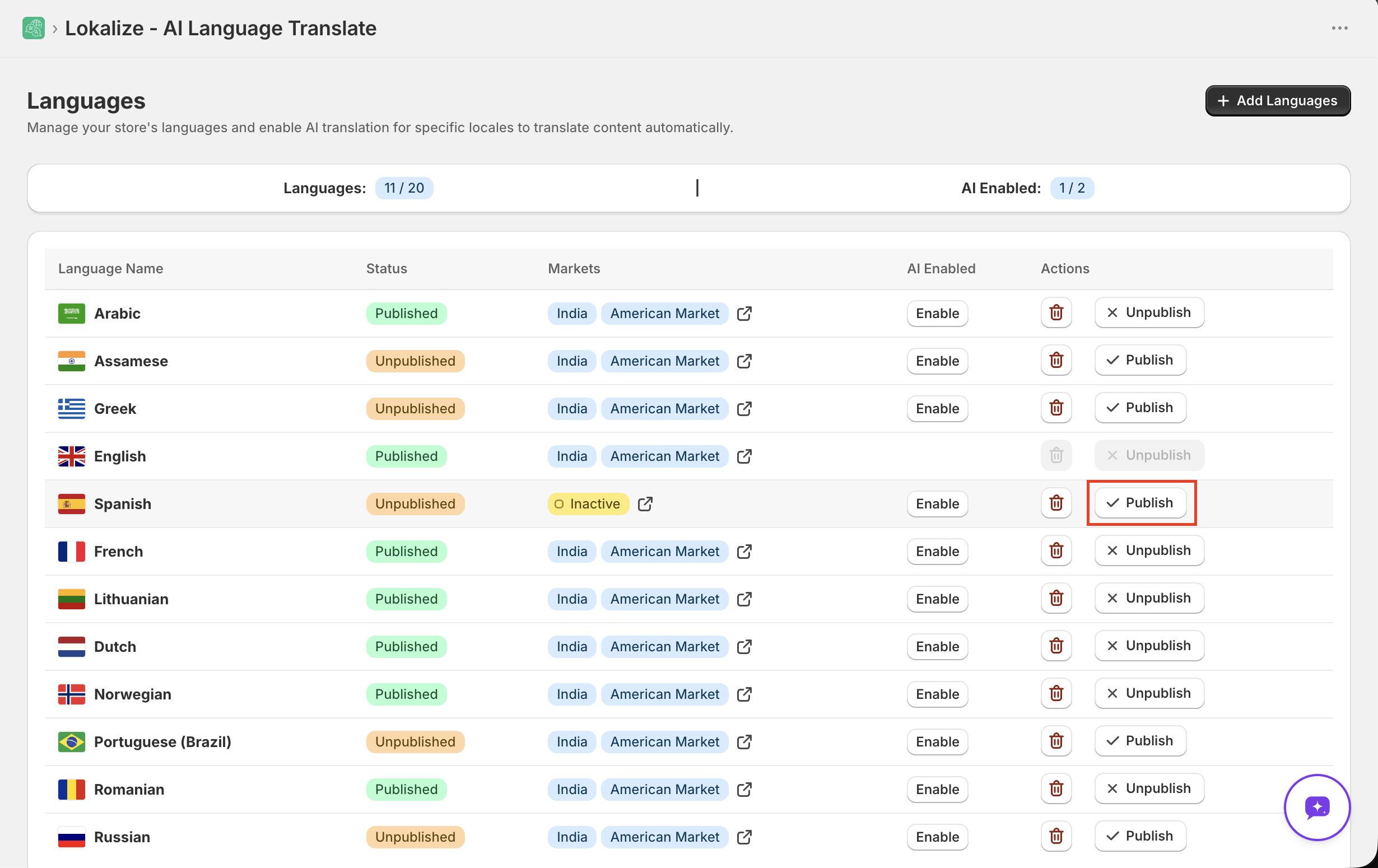
In Shopify: go to Settings → Markets and assign the language to the relevant market. How you do that depends on how your store is set up.
Single market
Most stores have one market. This is the simplest case.
- In your Shopify admin, go to Settings → Markets.
- Click your market.
- Click + next to Languages and select the language.
- Click Save.
The language is now live on your storefront.
Multiple markets — subfolders
Use this if each market is served from a subfolder of your main domain. Subfolders are the easiest to set up and inherit your primary domain's search ranking, which is good for SEO.
- In your Shopify admin, go to Settings → Markets.
- Open the market you want to add the language to.
- Click + next to Languages and choose New Subfolder.
- Select the language and save.
To make it the default language for that market, open its menu (three dots) and select Set as default.
/fr (language-only) works only for your primary market. Secondary markets require a combined locale code like /fr-ca (language + region).
Multiple markets — subdomains or country domains
Use this if each market has its own subdomain (e.g. fr.yourstore.com) or a separate country-code domain (e.g. yourstore.fr).
- Subdomains are free to set up and easy to manage but take longer than subfolders to build search authority.
- Country-code domains (
.fr,.de, etc.) require purchasing separate domains and each builds independent SEO authority over time.
- In your Shopify admin, go to Settings → Markets.
- Open the market.
- Click + next to Languages and select the domain or subdomain.
- Save.
To set a different default language for that domain, open its menu and select Set as domain default.
To assign more than one language to a domain, go to Shopify Settings → Domains, open the domain, and use Assign to domain for each additional language.
Geolocation and country redirection
Shopify has built-in geolocation that routes visitors to the market and language that matches their location. Lokalize handles the translations — Shopify handles the routing.
How it behaves depends on your domain setup:
- Dedicated domains or subfolders per market — Shopify redirects the visitor to the correct URL (e.g.
yourstore.com/fr-ca/). - Single shared domain — no redirect happens. Shopify adjusts the content (currency, language) inline without changing the URL.
Shared-domain markets are not indexed separately by search engines. If international SEO matters, use dedicated subfolders or domains per market.
To enable geolocation redirection:
- In Shopify admin, go to Online Store → Preferences and turn on Country/region redirection.
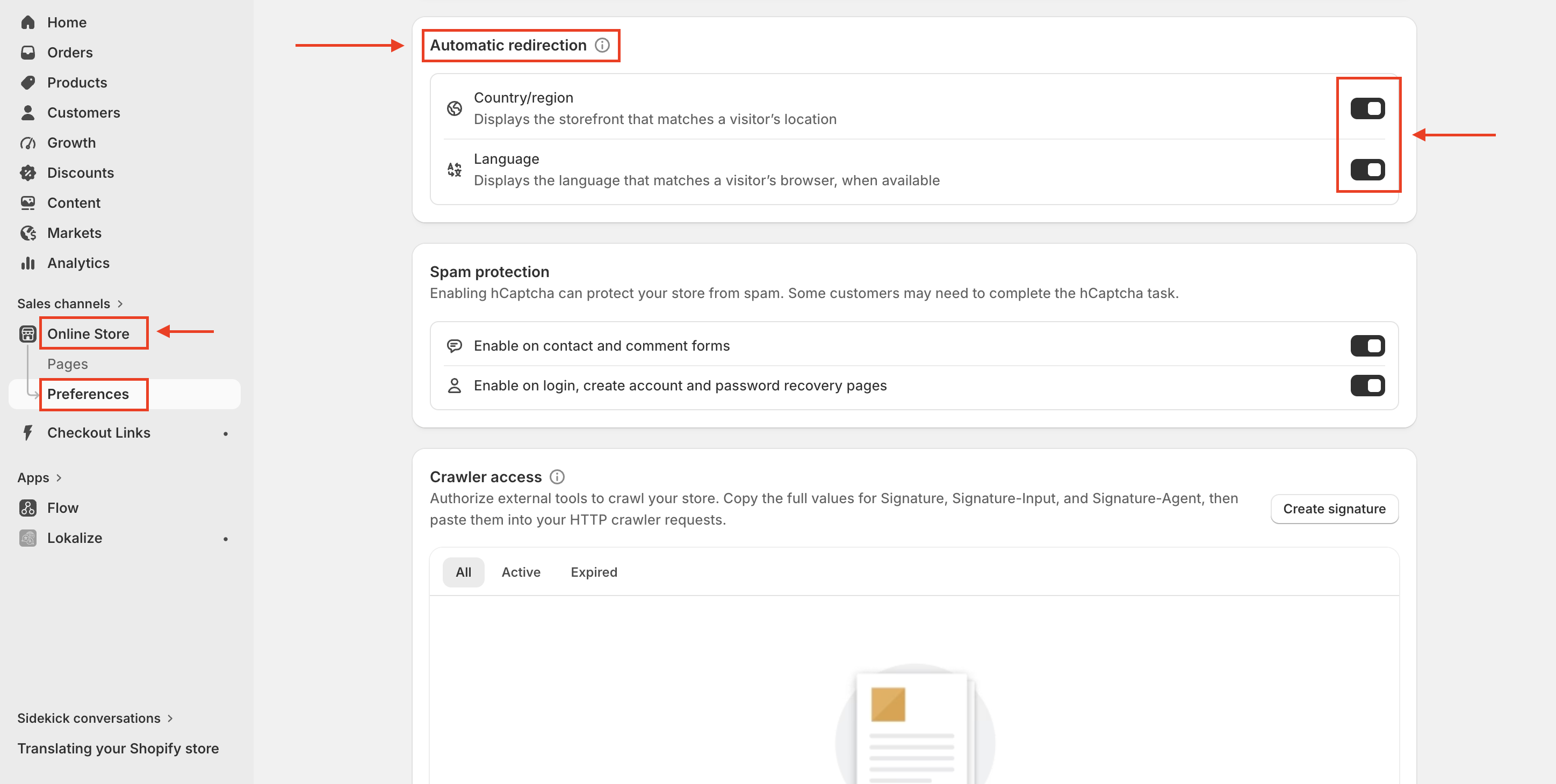
- Make sure each market has the correct language assigned, translated, and published — otherwise Shopify falls back to your primary language.
Customers visiting from an EU country-code domain (e.g. .de, .fr) are never automatically redirected by Shopify — this is intentional to comply with EU regulations. They can still switch manually using a language/country selector.
Language and market redirection is handled entirely by Shopify — Lokalize has no effect on it.
Step 3 — Enable AI for the language
To translate a language with Lokalize's AI features — Bulk Translate, Auto-Translate, and the per-field AI translate button — you need to mark it as AI-enabled.
- On the Languages page, click Enable next to the language.
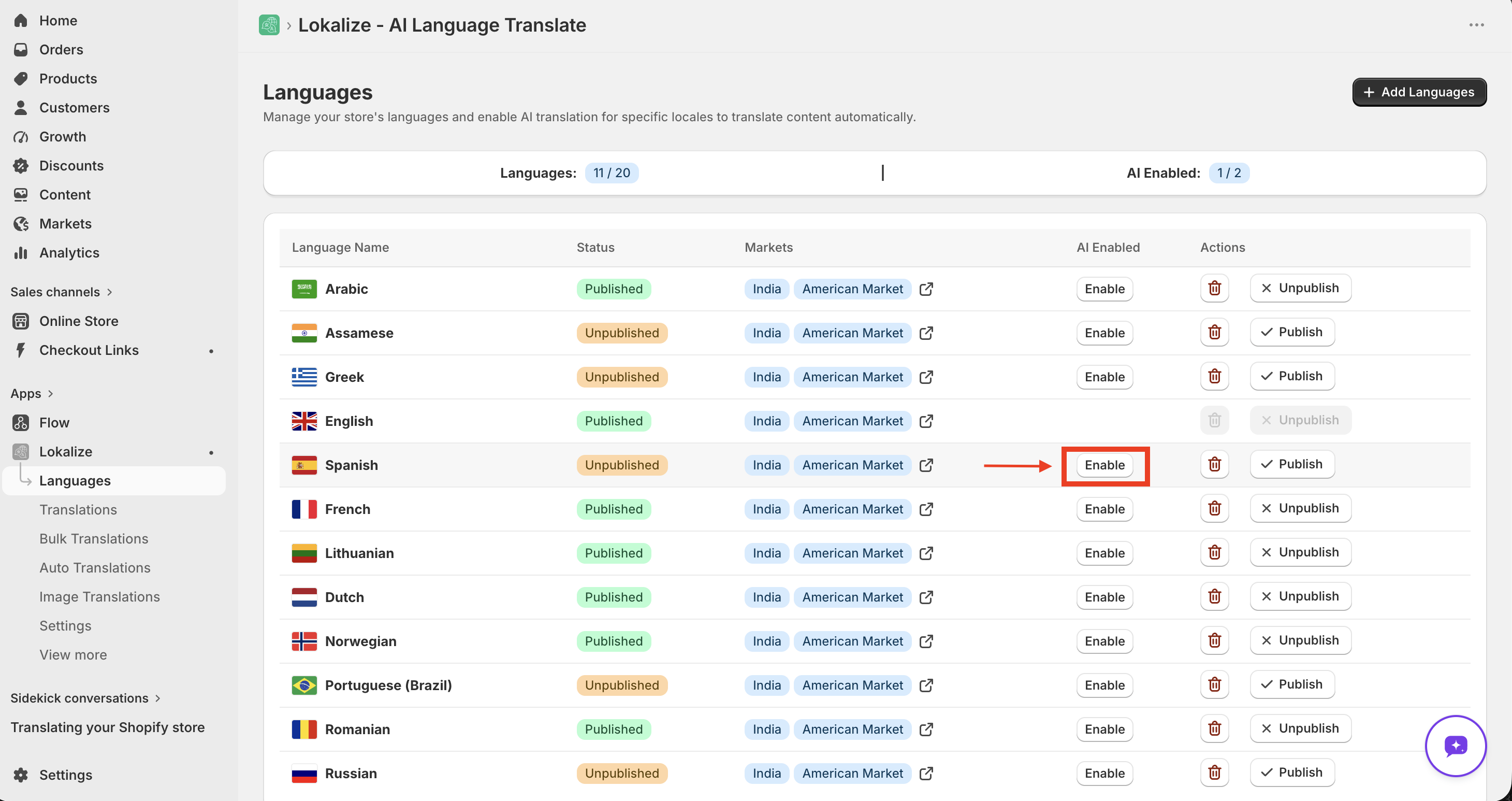
- Confirm when prompted. The language is now ready for AI translation.
A few things to know:
- The number of AI-enabled languages you can have depends on your plan — Basic 2, Pro 5, Premium 10, Business 20. See Lokalize plans compared.
- Languages that aren't AI-enabled can still receive manual translations — you just can't use the AI features on them.
- AI can't be disabled for a single language once it's on. To stop AI translations for a language, remove the language from your store entirely. This is by design, to avoid accidentally disrupting active translation workflows.
Unpublish vs. delete
- Unpublish hides a language from your storefront but keeps its translations, so you can keep working on them in the app.
- Delete removes the language and permanently deletes its translations.
Your translations are stored in Shopify, so they stay in your store even if you uninstall Lokalize. But if you delete a language and might need its translations later, export them first.
Good to know
- Fallback to primary language. If a translation doesn't exist for a field, Shopify automatically shows it in your store's primary language rather than showing a blank. This means you can translate incrementally without breaking your storefront.
- hreflang tags are automatic. Shopify generates hreflang tags for all published languages, which prevents duplicate-content penalties in search engines and helps Google route searchers to the right language version.
- Tags can't be translated. Product and collection tags are not translatable in Shopify — they always appear in your primary language regardless of the customer's locale.
- Market-specific translations aren't supported. Shopify stores one translation per language locale (
fr,de, etc.) — not per market. If you need French to read differently for France vs. Canada, the approach is to use two separate locales (frandfr-CA) and assign each to the relevant market. - Checkout is pre-translated. Shopify's checkout is professionally translated into 33 languages out of the box — you don't need to translate it yourself.
Frequently asked questions
Can Lokalize work alongside Shopify Translate & Adapt?
Yes. Lokalize works alongside Shopify's Translate & Adapt app. Both use the same Shopify Translation API, so translations created in either app are stored in the same place and visible in both. Lokalize offers significantly more features — AI-powered bulk translation, auto-translation, glossary support, image translation, import/export, and more translation engines — as well as broader language coverage than Translate & Adapt.
Does Lokalize work with my Shopify theme?
Lokalize is designed to work seamlessly with Shopify's multi-language feature. If your theme supports multi-language, you should not experience any issues.
What is the difference between unpublishing and deleting a language?
Unpublishing hides the language from your storefront but preserves its translations — you can keep editing them in the app and re-publish at any time. Deleting removes the language and permanently deletes its translations from Shopify. Export your translations before deleting if you might need them later.
Can I disable AI for a language without removing it?
No. Once AI is enabled for a language, it cannot be individually disabled. To stop AI translations for a language, you need to remove the language entirely from your store. This is by design to prevent accidental disruption to active translation workflows.